UPDATED OCTOBER 2026 | WINDOWS 11 | FREE METHODS, NO RISK TO YOUR DATA
An SSD rarely fails without warning. Its built-in S.M.A.R.T. data tracks how much of its life has been used, its temperature and any errors, and you can read all of it for free in a couple of minutes.
This guide shows four safe ways to check SSD health in a Windows 11 laptop, how to read the numbers, and what to do if your drive shows a warning. None of these methods changes or deletes your files.
Quick Answer: How Do You Check SSD Health in a Laptop?
Open Settings > System > Storage > Advanced storage settings > Disks & volumes, select your SSD and click Properties. Under Drive health, Windows 11 shows the estimated remaining life, available spare and temperature. For more detail, use the free tool CrystalDiskInfo.
- Built into Windows 11: Settings > Disks & volumes > Properties
- Most detail: CrystalDiskInfo (free)
- Brand tools: Samsung Magician, WD Dashboard, Crucial Storage Executive
- Command line: PowerShell Get-PhysicalDisk
4 Ways to Check SSD Health Compared
Swipe sideways on mobile to see every column.
| Method | Needs a download? | What it shows | Best for |
|---|---|---|---|
|
Windows 11 Settings |
No |
Remaining life %, available spare, temperature |
Quick check of NVMe SSDs |
|
CrystalDiskInfo |
Yes, free |
Health status, %, temperature, hours, total writes, errors |
Full S.M.A.R.T. details on any SSD |
|
SSD maker’s app |
Yes, free |
Health, firmware updates, diagnostics |
Retail SSDs you installed yourself |
|
PowerShell |
No |
Healthy/Warning status, wear %, errors |
Users comfortable with commands |
METHOD 1
Method 1: Check SSD Health in Windows 11 Settings (No Software)
Windows 11 reads the health data that NVMe SSDs report. Almost every laptop sold in the last few years uses an NVMe SSD, so this works on most machines.
- Press Windows + I to open Settings.
- Go to System > Storage.
- Scroll down and click Advanced storage settings, then Disks & volumes.
- Click your SSD (usually Disk 0), then click Properties.
- Look at the Drive health section: Estimated remaining life, Available spare and Temperature.
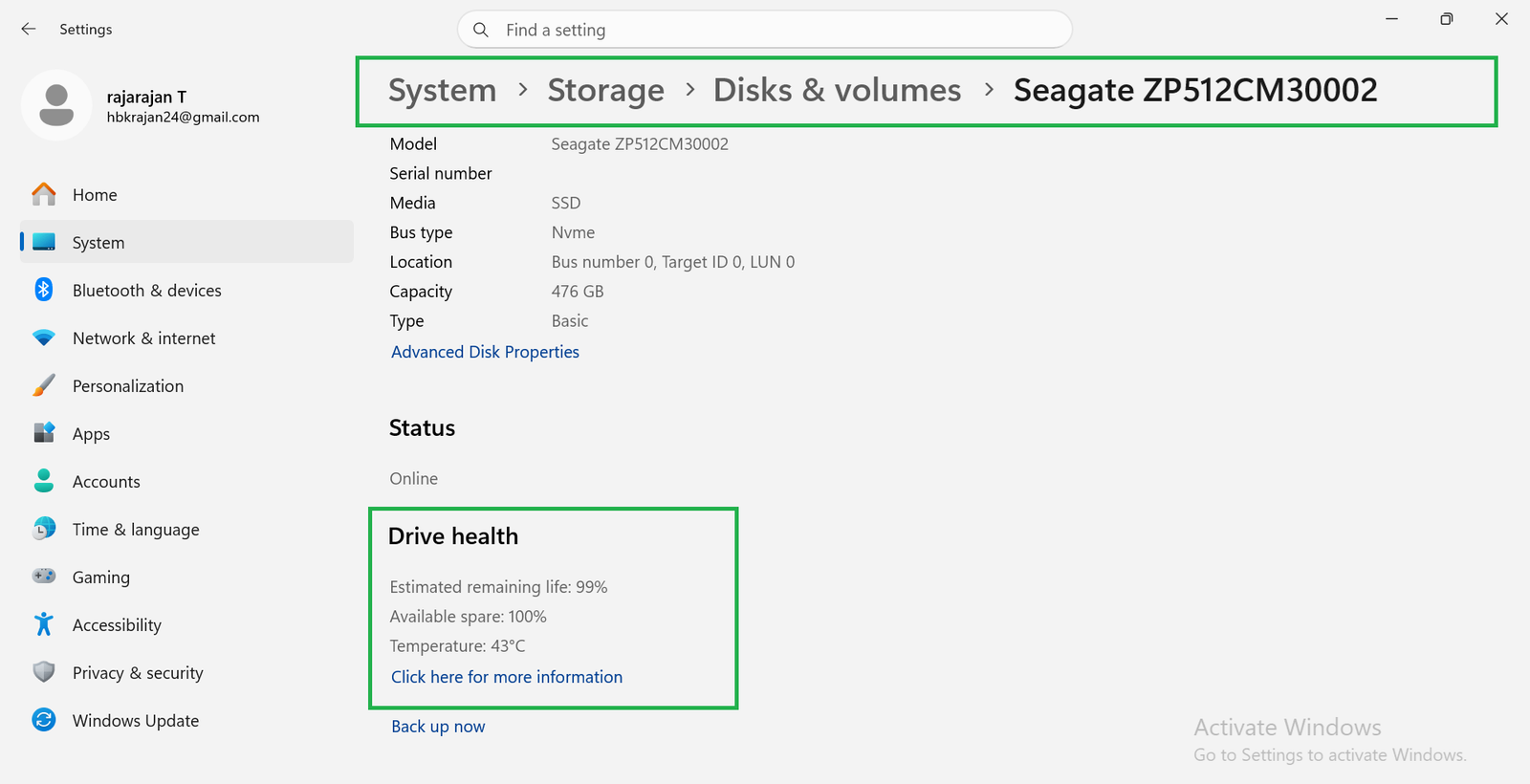
If you do not see a Drive health section, your drive is probably a SATA SSD or a hard disk. Use CrystalDiskInfo instead.
Tip: Windows 11 also shows a notification when an NVMe SSD reports a problem. If you ever see “Back up your data” about a drive, act on it straight away.
METHOD 2
Method 2: CrystalDiskInfo (Free, Most Detailed)
CrystalDiskInfo is a small, free and long-running tool that reads all the S.M.A.R.T. data of your SSD or hard disk and gives a simple Good, Caution or Bad rating.
- Download CrystalDiskInfo Standard Edition from the official site, crystalmark.info. Avoid copies on other download sites.
- Install and open it. It reads your drives automatically.
- Check Health Status at the top left. Good with a high percentage is what you want.
- Note the Temperature, Power On Hours and Total Host Writes values.
- If you have more than one drive, click each one in the top bar.
The colours are easy to read: blue or green means Good, yellow means Caution and red means Bad. A Caution rating does not mean the SSD will die today, but it is time to back up and plan a replacement.
METHOD 3
Method 3: Use Your SSD Maker's App
If you installed a retail SSD yourself, the maker’s free app shows its health and can also update the firmware, which often fixes bugs.
- Samsung: Samsung Magician
- WD and SanDisk: WD Dashboard (SanDisk Dashboard for older models)
- Crucial: Crucial Storage Executive
- Kingston: Kingston SSD Manager
- Seagate: SeaTools
Note that the SSD that came inside your laptop is often an OEM version that these apps do not fully support. In that case, use Windows Settings or CrystalDiskInfo, or the laptop maker’s own diagnostics: Dell SupportAssist, HP PC Hardware Diagnostics, Lenovo Vantage or MyASUS.
METHOD 4
Method 4: Check SSD Health with PowerShell
Windows PowerShell can read the drive’s health status and wear level without any download.
- Right-click the Start button and choose Terminal (Admin). Click Yes.
- Type
Get-PhysicalDisk | Select FriendlyName, MediaType, HealthStatusand press Enter. Healthy is good; Warning or Unhealthy means back up now. - For more detail, type
Get-PhysicalDisk | Get-StorageReliabilityCounter | Select Wear, Temperature, PowerOnHours, ReadErrorsTotal, WriteErrorsTotaland press Enter. - Wear is the percentage of the SSD’s rated life already used. 0 to 10 is normal for a laptop that is a few years old.
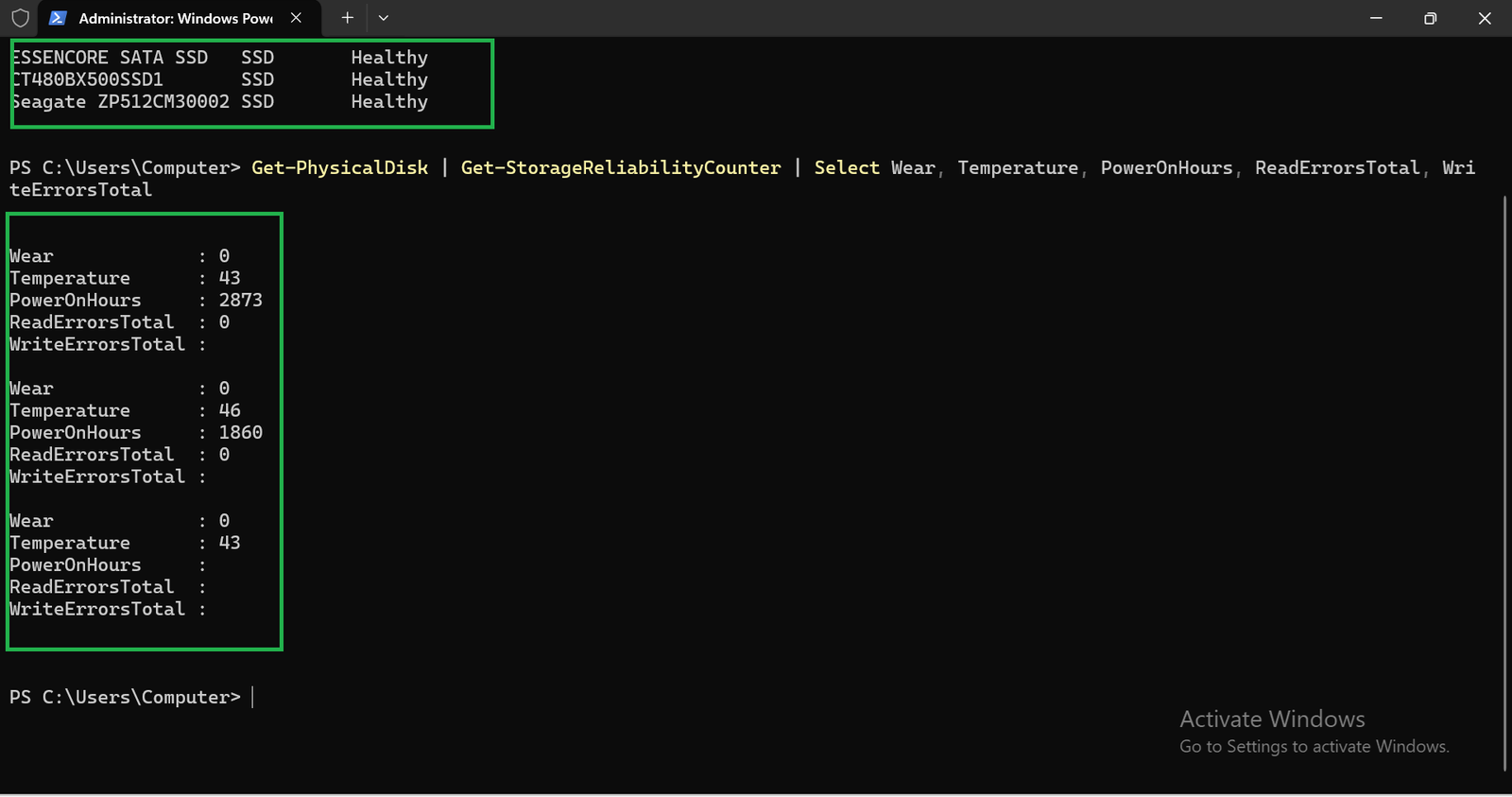
Some laptops leave a few of these fields empty. That depends on the storage driver and does not mean anything is wrong. Older guides suggest the wmic command, but Microsoft is removing it from Windows 11, so use PowerShell instead.
What the SSD Health Numbers Mean
Swipe sideways on mobile to see every column.
| Value | What it means | What is normal |
|---|---|---|
|
Health % / Estimated remaining life |
How much of the SSD’s rated life is left |
90 to 100% for most laptops under 3 to 4 years old |
|
Percentage Used / Wear |
How much of the rated life is used (the opposite of health %) |
Low single digits on a light-use laptop |
|
Available spare |
Reserve blocks that replace worn-out ones |
100% is ideal; a warning appears near 10% |
|
Total Host Writes |
Total data written to the SSD so far |
Compare it with the TBW rating; most 512GB SSDs are rated for hundreds of TB |
|
Temperature |
Current drive temperature |
About 30 to 50°C in normal use; above 70°C the drive may slow down |
|
Power On Hours |
Total hours the SSD has been running |
Useful for checking a second-hand laptop |
|
Media / data integrity errors |
Errors the drive could not fix |
Should be 0 |
Signs Your Laptop SSD Is Failing
Check the health of your SSD straight away if you notice any of these:
- Files or folders suddenly become corrupt or will not open
- The laptop freezes, crashes or restarts during normal use
- Windows takes much longer to start, or shows “No bootable device”
- Saving files fails, or the drive becomes read-only
- The SSD disappears from File Explorer or Disk Management
How to Keep Your SSD Healthy for Longer
- Back up regularly. Use OneDrive, Google Drive or an external drive. No health number replaces a backup.
- Keep 10 to 20% free space. A nearly full SSD slows down and wears faster. Our guide on how to speed up a laptop shows what to clear first.
- Update the SSD firmware with the maker’s app or the laptop maker’s update tool.
- Leave Optimize Drives on. Windows sends TRIM to SSDs automatically. You do not need to defragment an SSD.
- Keep the laptop cool. Use it on a hard, flat surface so the vents are not blocked.
Tip: If your SSD shows Caution, Bad or under about 10% life left, copy your important files first, then replace the drive. Many laptops have a standard M.2 slot, so a new SSD is an easy upgrade. To put Windows on the new drive, follow our guide on how to format a laptop.
Planning to Buy a New Laptop?
If your laptop is old and its SSD is wearing out, a new laptop with a fast NVMe SSD may be a better buy than repairs. Our buying guides compare the best new laptops on Amazon India. On a small budget, see our best laptops under ₹35,000.
Frequently Asked Questions About SSD Health
How can I check SSD health in Windows 11 without software?
Open Settings > System > Storage > Advanced storage settings > Disks & volumes, select your SSD and click Properties. The Drive health section shows the estimated remaining life, available spare and temperature for NVMe SSDs. You can also run Get-PhysicalDisk in PowerShell.
What is a good SSD health percentage?
90 to 100% is normal for most laptops. Below about 50%, keep regular backups and watch it more often. Below about 10%, or if a tool shows Caution or Bad, back up your data and replace the SSD.
Is CrystalDiskInfo safe to use?
Yes, when you download it from the official site, crystalmark.info. It only reads the S.M.A.R.T. data and does not change anything on your drive.
How long does a laptop SSD last?
Most laptop SSDs last 5 to 10 years with normal use. Typical home and office use writes far less data than an SSD’s TBW rating, so most laptops are replaced before the SSD wears out.
Can a failing SSD be repaired?
Usually not. A firmware update can fix some bugs, but worn-out flash memory cannot be restored. If health is falling quickly or errors appear, copy your files and replace the SSD.
The Short Version
Start with Windows 11 Settings > Disks & volumes > Properties for a quick, no-download check. Use CrystalDiskInfo for full details, or your SSD maker’s app if you installed the drive yourself. Whatever the numbers say, keep a backup of your important files.

Getmyelectronic is a buying guide for laptops, monitors, graphics cards and gaming PC accessories in India. The guides are written by Rajarajan, a gamer and PC hardware enthusiast. The aim is simple: help you pick the right product for your budget and your use, without the marketing noise