UPDATED OCTOBER 2026 | WINDOWS 11 | STEP-BY-STEP GUIDE
Want to know which graphics card your laptop has before installing a game, updating drivers or selling the laptop? Windows 11 shows it in several places, and you do not need to open the laptop or install anything.
Most laptops actually have two graphics processors: an integrated one built into the processor and, on gaming laptops, a separate dedicated card from NVIDIA or AMD. This guide shows how to find both, how much video memory (VRAM) they have, and how to tell which one a game is using.
Quick Answer: How Do You Check the Graphics Card in a Laptop?
Press Ctrl + Shift + Esc to open Task Manager, click Performance, and click each GPU entry (GPU 0, and GPU 1 if it is listed). The graphics card’s name appears at the top right, with its dedicated memory below. If the only GPU listed has an Intel or AMD Radeon integrated name, the laptop has integrated graphics only.
- Fastest: Task Manager > Performance > GPU
- Full list: Device Manager > Display adapters
- VRAM details: Windows + R > dxdiag > Display tab
- Power limit (TGP): NVIDIA Control Panel > System Information
6 Ways to Check Your Laptop's Graphics Card
Swipe sideways on mobile to see every column.
| Method | How to open it | What it tells you |
|---|---|---|
|
Task Manager |
Ctrl + Shift + Esc > Performance |
GPU names, dedicated and shared memory, usage, temperature |
|
Device Manager |
Windows + X > Device Manager |
Every graphics adapter and its driver |
|
Settings |
Settings > System > Display > Advanced display |
Which GPU drives your screen |
|
DirectX Diagnostic Tool |
Windows + R > dxdiag |
GPU name, maker and VRAM |
|
System Information |
Windows + R > msinfo32 |
Adapter name and driver details |
|
NVIDIA / AMD app |
NVIDIA Control Panel or AMD Software |
Exact model, driver and power (TGP) |
METHOD 1
Method 1: Task Manager (Fastest)
Task Manager shows every GPU in your laptop with its memory and live usage.
- Press Ctrl + Shift + Esc to open Task Manager.
- Click the Performance icon on the left (it looks like a small graph).
- Click GPU 0, then GPU 1 if it is listed.
- Read the graphics card’s name at the top right, for example NVIDIA GeForce RTX 4060 in the screenshot below.
- Check Dedicated GPU memory. This is the card’s own video memory (VRAM). The RTX 4060 below shows 8.0 GB.
The bottom of the same page also lists the Driver version and the DirectX version the card supports (DirectX 12 here).
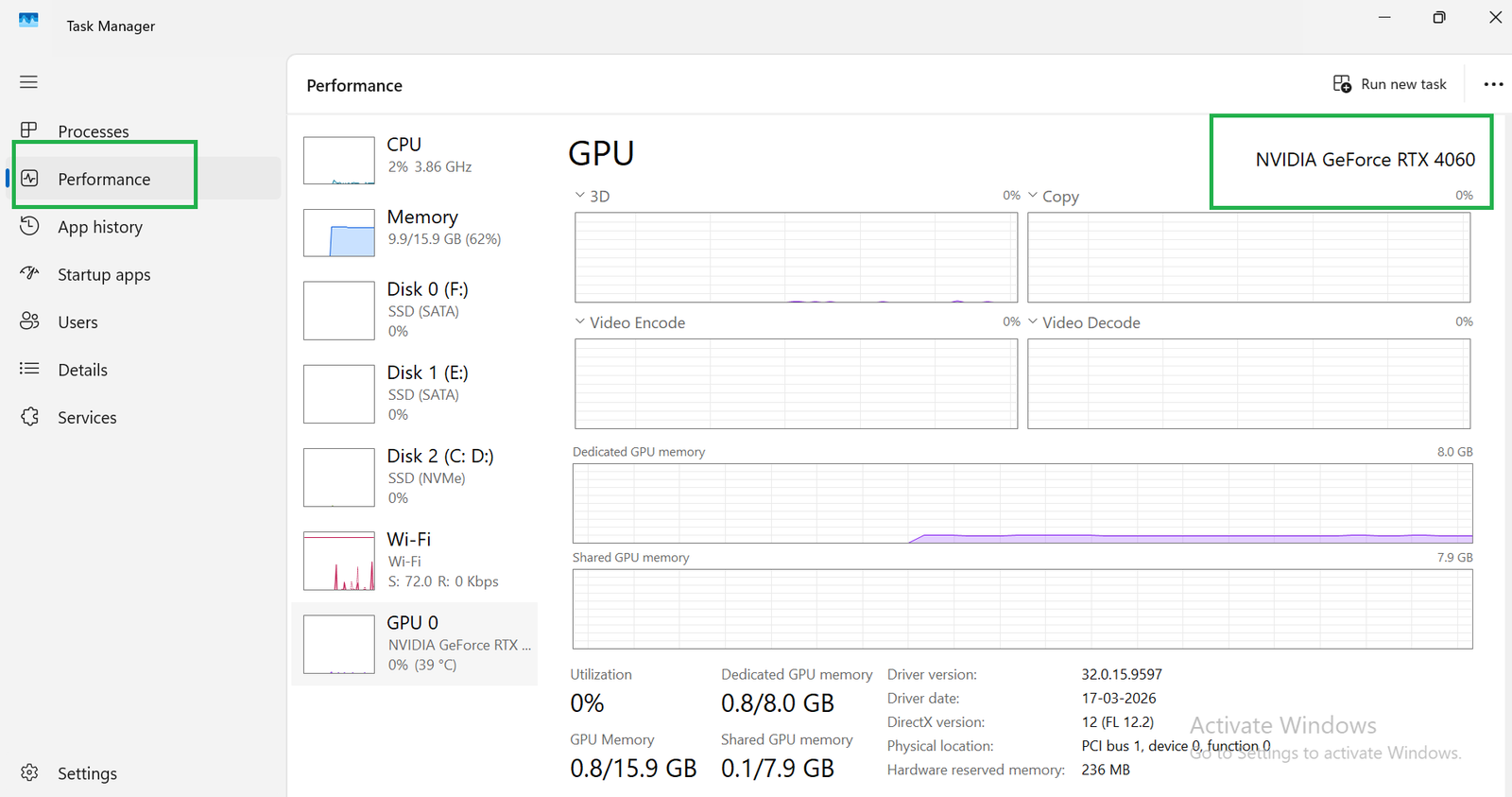
On laptops with two graphics processors, GPU 0 is usually the integrated graphics (Intel or AMD Radeon) and GPU 1 is the dedicated NVIDIA or AMD card. Windows can number them the other way, so always go by the name. If only one NVIDIA or AMD card is listed, as in the screenshot, the integrated graphics is switched off (for example by a MUX switch set to dedicated GPU mode) or the processor does not have one. A dedicated GPU often shows 0% use when idle because the laptop powers it down to save battery. That is normal.
METHOD 2
Method 2: Device Manager
Device Manager lists every graphics adapter installed, even if its driver has a problem.
- Right-click the Start button (or press Windows + X) and click Device Manager.
- Click the arrow next to Display adapters.
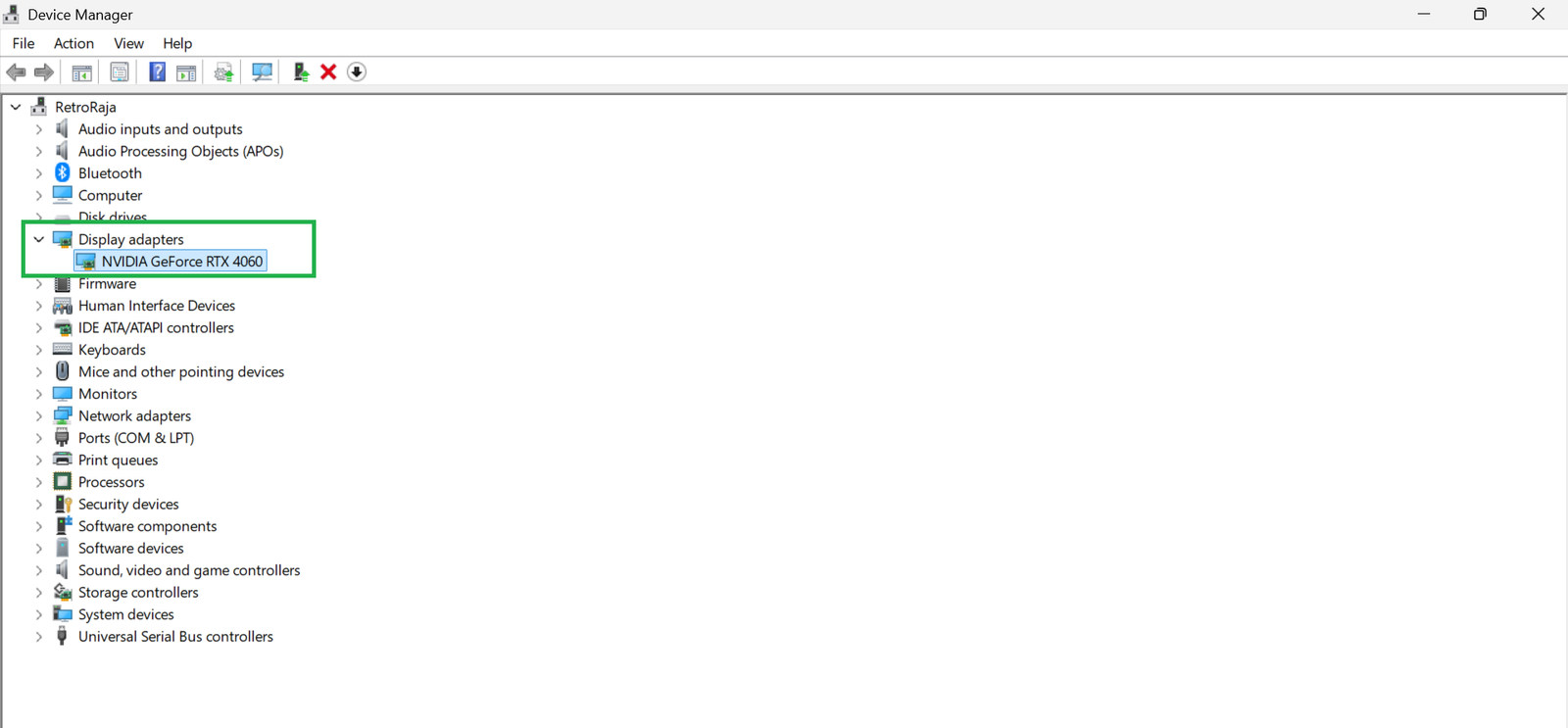
- You will see one or two entries, such as Intel(R) UHD Graphics and NVIDIA GeForce RTX 4060. In the screenshot below, only the NVIDIA GeForce RTX 4060 is listed.
If you see Microsoft Basic Display Adapter, the graphics driver is missing. Install it from Windows Update or from your laptop maker’s support page.
METHOD 3
Method 3: DirectX Diagnostic Tool (dxdiag)
dxdiag shows the graphics card’s name, maker and exact amount of video memory.
- Press Windows + R, type dxdiag and press Enter. Click Yes if it asks to check drivers.
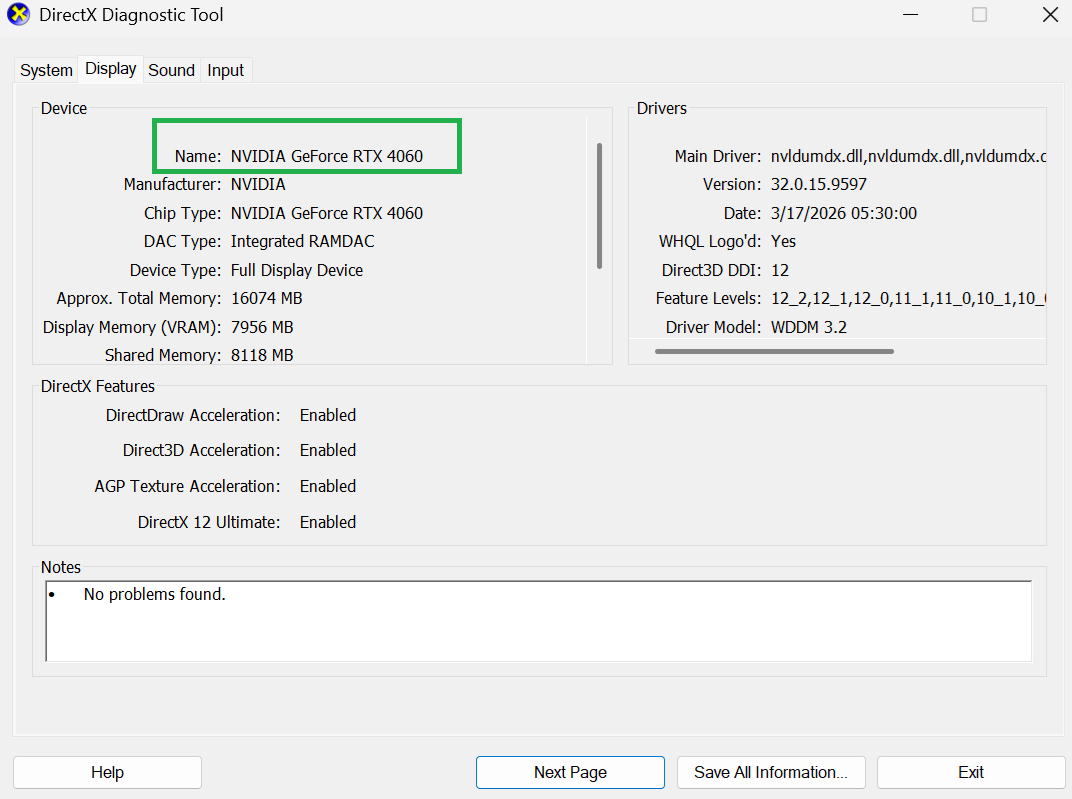
- Open the Display 1 tab. It shows the GPU that drives the screen. On most laptops this is the integrated GPU, but it is the NVIDIA card when that card drives the screen directly, as in the screenshot below.
- If there is a Render tab, open it. On gaming laptops with two GPUs this shows the dedicated NVIDIA or AMD card.
- Read Name and Display Memory (VRAM). The screenshot shows 7,956 MB, which means an 8 GB card. Ignore Approx. Total Memory (16,074 MB here), because it adds shared system RAM to the VRAM.
METHOD 4
Method 4: Windows 11 Settings
Settings shows which graphics processor is connected to your screen.
- Press Windows + I and go to System > Display.
- Scroll down and click Advanced display.
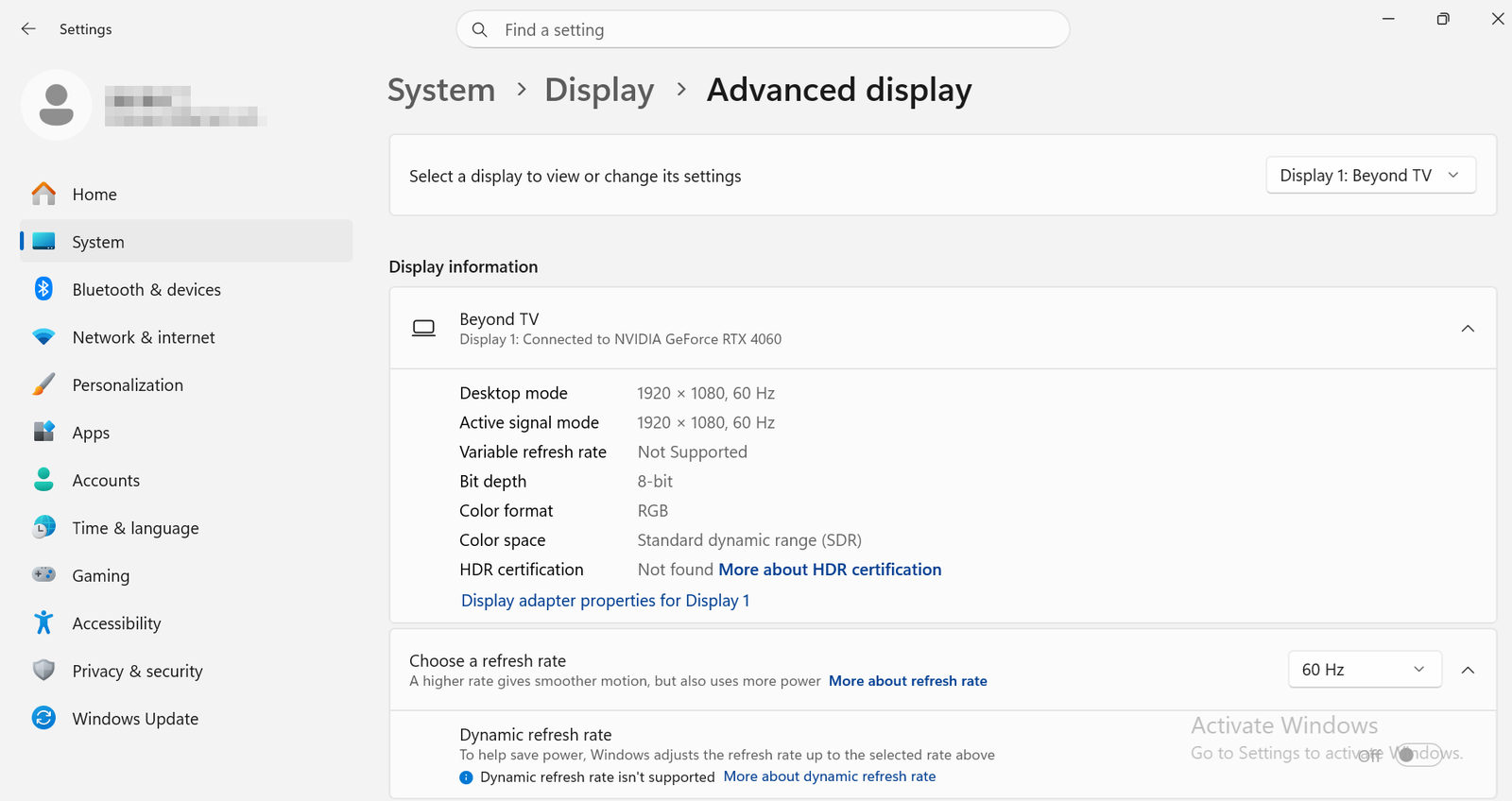
- Under Display information, read the line Connected to, for example “Display 1: Connected to NVIDIA GeForce RTX 4060” in the screenshot below.
On most laptops the built-in screen is connected to the integrated GPU, and the NVIDIA card passes its frames through it. That is how NVIDIA Optimus saves battery. Gaming laptops with a MUX switch or “Advanced Optimus”, and external monitors plugged into an HDMI port wired to the NVIDIA card, connect directly to the NVIDIA card instead. That gives a few more frames per second.
METHOD 5
Method 5: System Information (msinfo32)
- Press Windows + R, type msinfo32 and press Enter.
- Go to Components > Display.
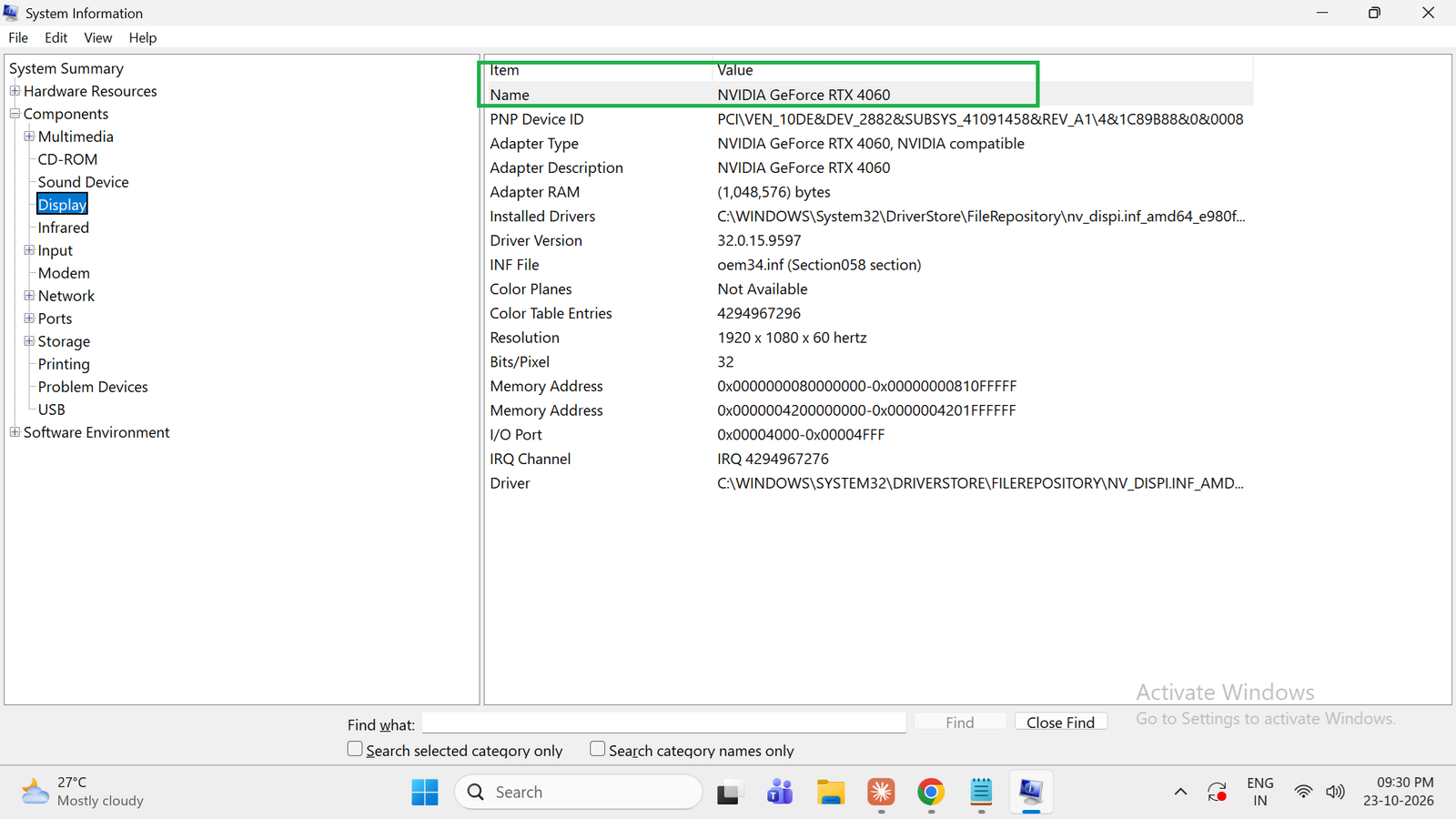
- Each graphics adapter is listed with its name, driver version and current resolution (NVIDIA GeForce RTX 4060, driver 32.0.15.9597 and 1920 x 1080 in the screenshot).
Do not trust the Adapter RAM value here for cards with more than 4 GB of memory. In the screenshot it shows (1,048,576) bytes, just 1 MB, for an 8 GB RTX 4060. Use Task Manager or dxdiag for VRAM.
METHOD 6
Method 6: NVIDIA Control Panel, NVIDIA App or AMD Software
The graphics driver’s own app gives the most precise details, including the power limit that decides how fast a laptop GPU really is.
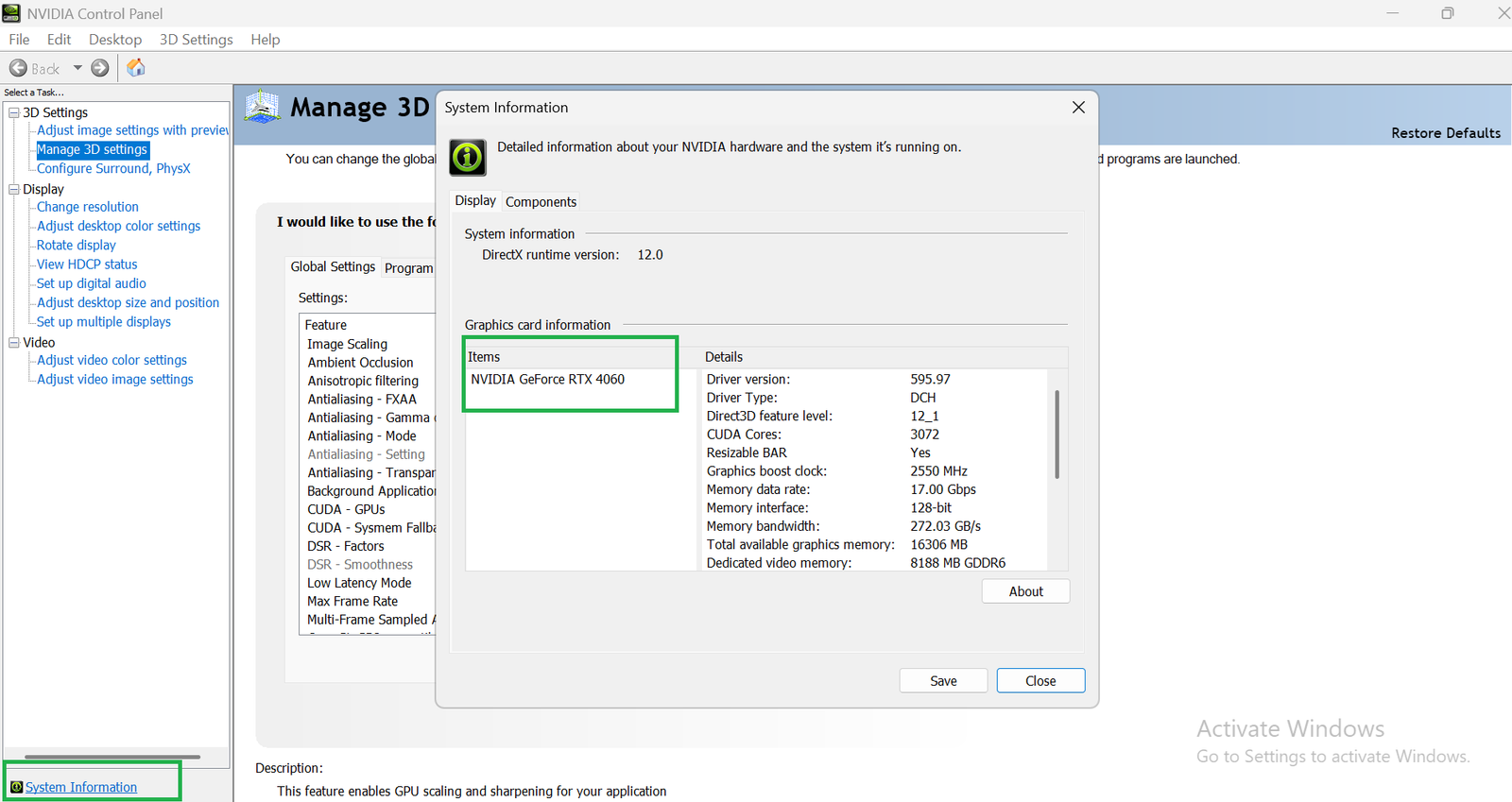
- NVIDIA: right-click the desktop, choose Show more options > NVIDIA Control Panel, then click System Information at the bottom left. The Display tab lists the driver version, CUDA cores, boost clock, memory interface and dedicated video memory. The RTX 4060 in the screenshot shows 3,072 CUDA cores, a 2,550 MHz boost clock, a 128-bit bus and 8,188 MB of GDDR6. On laptops the list also shows Maximum Graphics Power, the GPU’s TGP in watts.
- AMD: open AMD Software: Adrenalin Edition, click the gear icon and go to System to see the GPU model and driver.
- GPU-Z: for full details on one screen, try the free tool GPU-Z from TechPowerUp.
Tip: The same GPU can be much faster in one laptop than another. An RTX 4060 running at 115W is clearly faster than one limited to 60W. Always compare the TGP, not just the name.
Integrated vs Dedicated Graphics: What Is the Difference?
Swipe sideways on mobile to see every column.
| Feature | Integrated graphics | Dedicated graphics card |
|---|---|---|
|
Where it is |
Built into the processor |
A separate chip with its own memory |
|
Examples |
Intel UHD, Iris Xe, Intel Arc (Core Ultra), AMD Radeon 610M to 890M |
NVIDIA GeForce RTX 3050, 4050, 5050, 4060, 5060, 5070; AMD Radeon RX |
|
Video memory |
Shares the laptop’s RAM |
Own VRAM, usually 4 GB to 8 GB |
|
Good for |
Office work, study, video, light games |
Modern games, video editing, 3D and AI work |
|
Battery and heat |
Better battery, cooler |
Uses more power, needs a charger for full speed |
How to Make a Game Use the Dedicated Graphics Card
Windows normally picks the right GPU for games, but you can force it if a game runs slowly:
- Go to Settings > System > Display > Graphics.
- Find the game in the list, or click Browse to add its .exe file.
- Click the game and choose High performance (your NVIDIA or AMD card).
- Restart the game. You can confirm it in Task Manager: the graph for your NVIDIA or AMD GPU should rise while you play.
Tip: Always play with the charger connected. On battery, most gaming laptops limit the graphics card’s power to save charge.
Looking for a Laptop with a Better Graphics Card?
Our buying guides rank new gaming laptops on Amazon India by graphics card, from the RTX 3050 to the RTX 5070, with the GPU power (TGP) where it is listed.
Frequently Asked Questions About Laptop Graphics Cards
How do I know if my laptop has a graphics card?
Open Task Manager with Ctrl + Shift + Esc and go to Performance. If a GPU with an NVIDIA GeForce or AMD Radeon RX name is listed, the laptop has a dedicated graphics card. If the only GPU is Intel or AMD Radeon integrated graphics, it has integrated graphics only.
How do I check how much VRAM my laptop has?
In Task Manager > Performance > GPU, read Dedicated GPU memory. You can also open dxdiag and check Display Memory (VRAM) on the Display or Render tab. Integrated graphics have no dedicated VRAM and use the laptop’s RAM instead.
Why does Task Manager show two GPUs?
Most gaming laptops have both integrated graphics in the processor and a dedicated graphics card. The integrated GPU handles light work to save battery, and the dedicated card switches on for games and heavy apps.
Is a 4GB graphics card enough for gaming in 2026?
It runs esports games such as Valorant and CS2 well, but many new games need 6 GB to 8 GB of VRAM at 1080p high settings. For a new gaming laptop, aim for at least an RTX 3050 6GB or, better, an RTX 4050, 5050 or 5060.
Can I upgrade the graphics card in my laptop?
Almost never. Laptop graphics chips are soldered to the motherboard. To get a faster GPU you need a new laptop, so check the GPU and its TGP carefully before you buy.
The Short Version
Task Manager’s Performance tab is the quickest way to check the graphics card in any Windows 11 laptop. Use Device Manager to see every adapter, dxdiag for VRAM, and the NVIDIA or AMD app for the exact power limit. If you only see integrated graphics, the laptop is built for everyday work rather than modern games.

Getmyelectronic is a buying guide for laptops, monitors, graphics cards and gaming PC accessories in India. The guides are written by Rajarajan, a gamer and PC hardware enthusiast. The aim is simple: help you pick the right product for your budget and your use, without the marketing noise