UPDATED OCTOBER 2026 | WINDOWS 11 | LAPTOP PERFORMANCE
Most “speed up your laptop” lists give you 20 tips of equal weight. In real use they are not equal. On a slow laptop, one or two things usually cause most of the lag, and the rest of the list makes a small difference or none at all.
This guide is in the order we work through a slow laptop ourselves, including our own Acer Nitro 5: first find out what is actually slow, then fix the big things, then the small ones. We also tell you which popular tricks we stopped bothering with, so you do not waste an evening on them.
Short Answer: How to Speed Up a Laptop
Open Task Manager first (Ctrl + Shift + Esc) and look at the Performance tab. If Disk sits near 100% and the drive says HDD, replacing the hard disk with an SSD is the single biggest fix there is. If Memory stays above 80 to 90%, add RAM. If neither, the slowdown is usually startup apps and preinstalled trial software, the wrong power mode, or heat and dust. Resetting Windows is the last step, not the first.
- Hard disk (HDD) laptop: move to an SSD
- 8GB single stick, Memory always full: add a second stick for 16GB
- Slow from the moment it boots: cut startup apps and trial antivirus
- Gaming laptop slow in games: plug in the charger and check the power mode
- Gets slower after 10 to 20 minutes: heat and dust
- Nothing else worked: reset Windows
REAL EXAMPLE
How We Sped Up Our Own Acer Nitro 5
Our Acer Nitro 5 had slowed down the way most laptops do after a long stretch of daily use. It took a while to become usable after switching on, the fans spun up even on the desktop, and games that used to feel smooth had started to stutter. Nothing was broken, so instead of reinstalling Windows we worked through it in the same order as this guide.
- Checked Task Manager first. The Startup apps list was long, and the laptop stayed busy in the background for a good while after every boot.
- Removed what we did not need. We uninstalled the preinstalled trial antivirus and Acer extras we never used, and disabled game launchers and chat apps at startup. We kept NitroSense, because it controls the fans and performance modes.
- Fixed the power settings. We set NitroSense to its performance mode and Windows Power mode to Best performance when plugged in, and made sure games were running on the NVIDIA graphics card, not the integrated one.
- Cleaned out the dust. The vents and fans had collected dust, which made the laptop heat up and slow itself down during longer sessions.
- Updated and tidied up. Installed pending Windows updates and the latest NVIDIA driver, and cleared space on the C: drive.
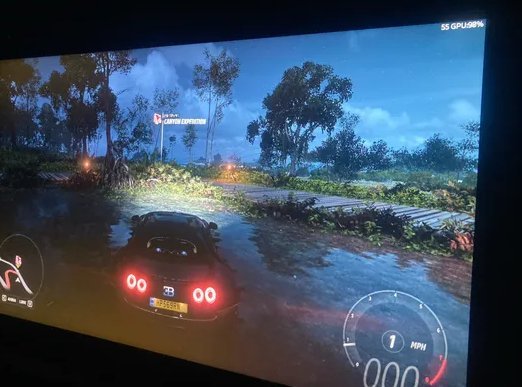
What changed: the Nitro 5 became usable much sooner after boot, it was quieter on the desktop, and games ran smoothly again when plugged in. On this laptop the startup clean-up and the power settings made the biggest difference, and cleaning the dust stopped the slowdown in long gaming sessions.
Your laptop may need something different. The Nitro 5 already had an SSD, so its problems were software, settings and heat. If your laptop still has a hard disk or only 8GB of RAM, the hardware steps below will matter more than anything we did here.
STEP 1
Find Out What Is Actually Slow (2 Minutes in Task Manager)
Before changing anything, we spend two minutes in Task Manager. It tells you which part of the laptop is the bottleneck, and that decides everything else in this guide.
- Press Ctrl + Shift + Esc to open Task Manager.
- Click Performance on the left (the graph icon).
- Use the laptop the way it normally feels slow: open Chrome, your college or office apps, or start the game. Watch the graphs for a minute.
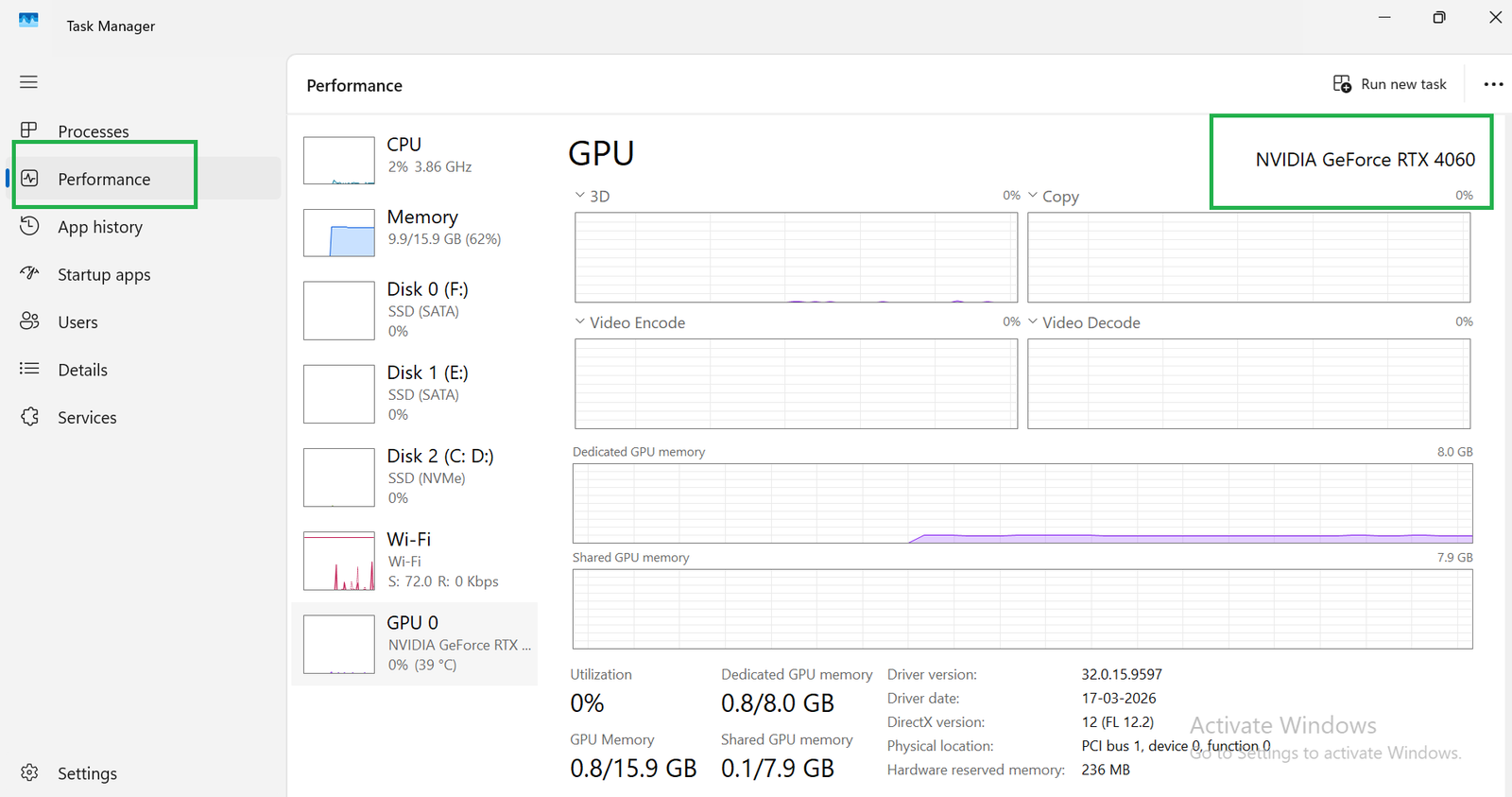
How to read what you see
- Disk 0 (C:) shows HDD and stays near 100%: the hard disk is the problem. Go to Step 2.
- Memory above 80 to 90% most of the time: the laptop is running out of RAM. Go to Step 3.
- CPU near 100% at idle, with the fan loud: something is running in the background. Check the Processes tab, sort by CPU, and see what is at the top. Steps 4 and 7.
- Everything looks fine but it still feels slow: usually power mode, heat or a nearly full C: drive. Steps 5 to 7.
A brand new laptop is often slow on day one, and that is normal. In the first few hours Windows Update, driver updates, Microsoft Store app updates, OneDrive and search indexing all run in the background. When we unbox a laptop, we connect it to Wi-Fi, let it update, restart it two or three times and only then judge its speed.
Slow Laptop: Symptom, Likely Cause and the Fix That Works
Swipe sideways on mobile to see every column.
| What you notice | Likely cause | Fix that works | How much it helps |
|---|---|---|---|
|
Boot takes minutes, apps open slowly, Disk at 100% |
Hard disk (HDD) |
Replace with an SSD |
Biggest single improvement |
|
Chrome tabs reload, apps freeze when switching, Memory 85%+ |
Too little RAM (4GB or 8GB) |
Add RAM, 16GB in dual channel |
Large, if RAM can be upgraded |
|
Slow for the first few minutes after every boot |
Too many startup apps, trial antivirus |
Turn off startup apps, uninstall trials |
Clear improvement at boot |
|
Games stutter only on battery |
Power limits on battery |
Plug in, use Best performance mode |
Large on gaming laptops |
|
Fast at first, slow after 10 to 20 minutes |
Heat, dust, laptop on a bed |
Clean vents and fans, hard surface |
Large on old dusty laptops |
|
Slow everywhere, C: drive almost full |
No free space |
Storage Sense, move files, uninstall |
Small to medium |
|
Random slowdowns, pop-ups, browser changed on its own |
Adware or malware |
Windows Security full scan |
Large if malware is found |
|
Still slow after all of the above |
Years of leftover software |
Reset Windows |
Medium to large |
These are the patterns we see most often. Your laptop can have more than one, so check every row that matches.
STEP 2
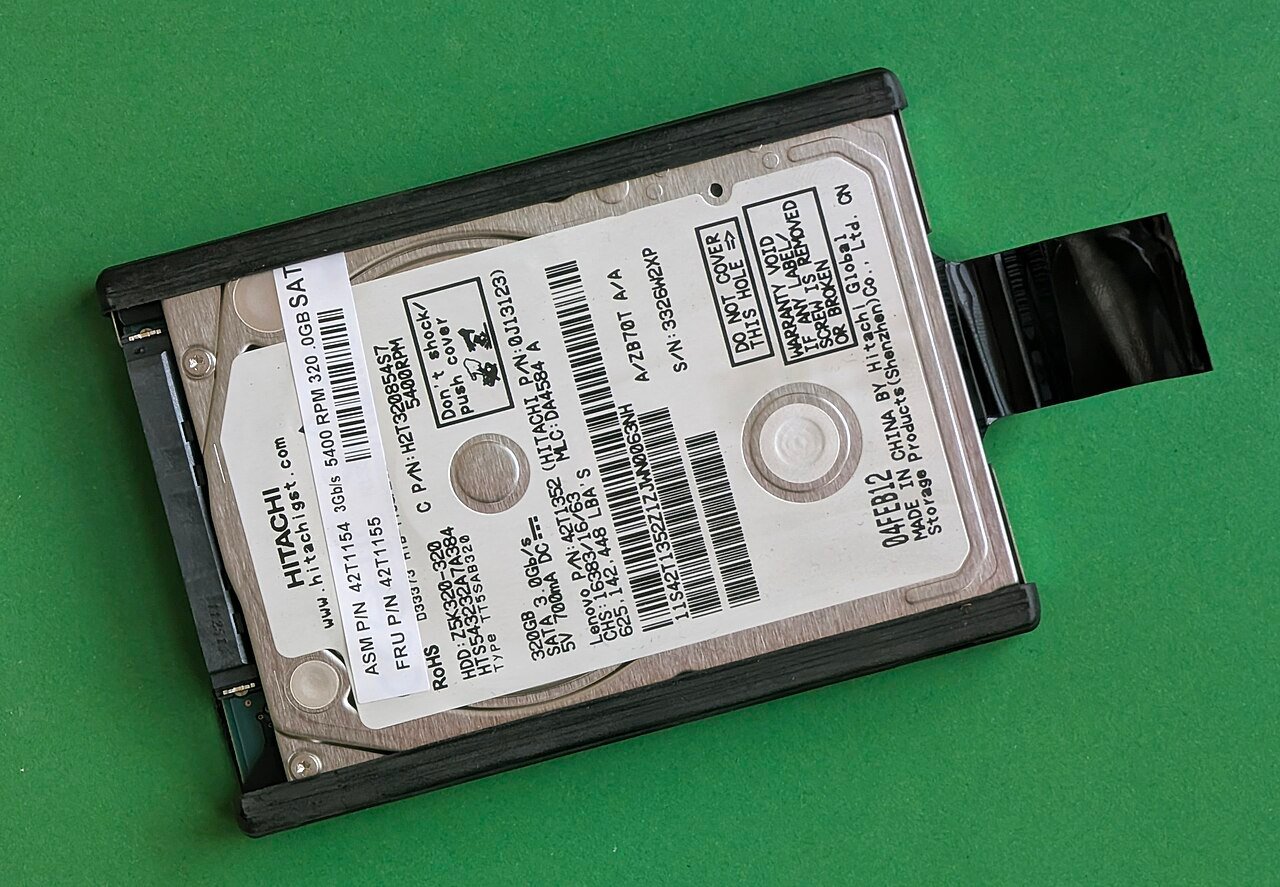
Still on a Hard Disk? Replace It With an SSD
If your laptop still boots from a hard disk (HDD), nothing else in this guide comes close to an SSD upgrade. Windows 11 reads and writes thousands of small files all the time, and a spinning hard disk is very slow at that. This is why an old HDD laptop shows Disk at 100% in Task Manager even when you are only opening the Start menu.
The difference is something you feel immediately, not a number you need a benchmark for: Windows reaches the desktop much sooner, the Start menu and File Explorer open without the wait, and Chrome stops freezing for a few seconds after you click it.
How to check if your laptop has an HDD or SSD
- In Task Manager, open Performance and click Disk 0 (C:). The type is written next to it: HDD or SSD.
- Or search the Start menu for Defragment and Optimize Drives. The Media type column says Hard disk drive or Solid state drive.
Which SSD fits your laptop
- 2.5-inch SATA SSD: fits in the same bay as the old hard disk. This is the usual upgrade for older laptops.
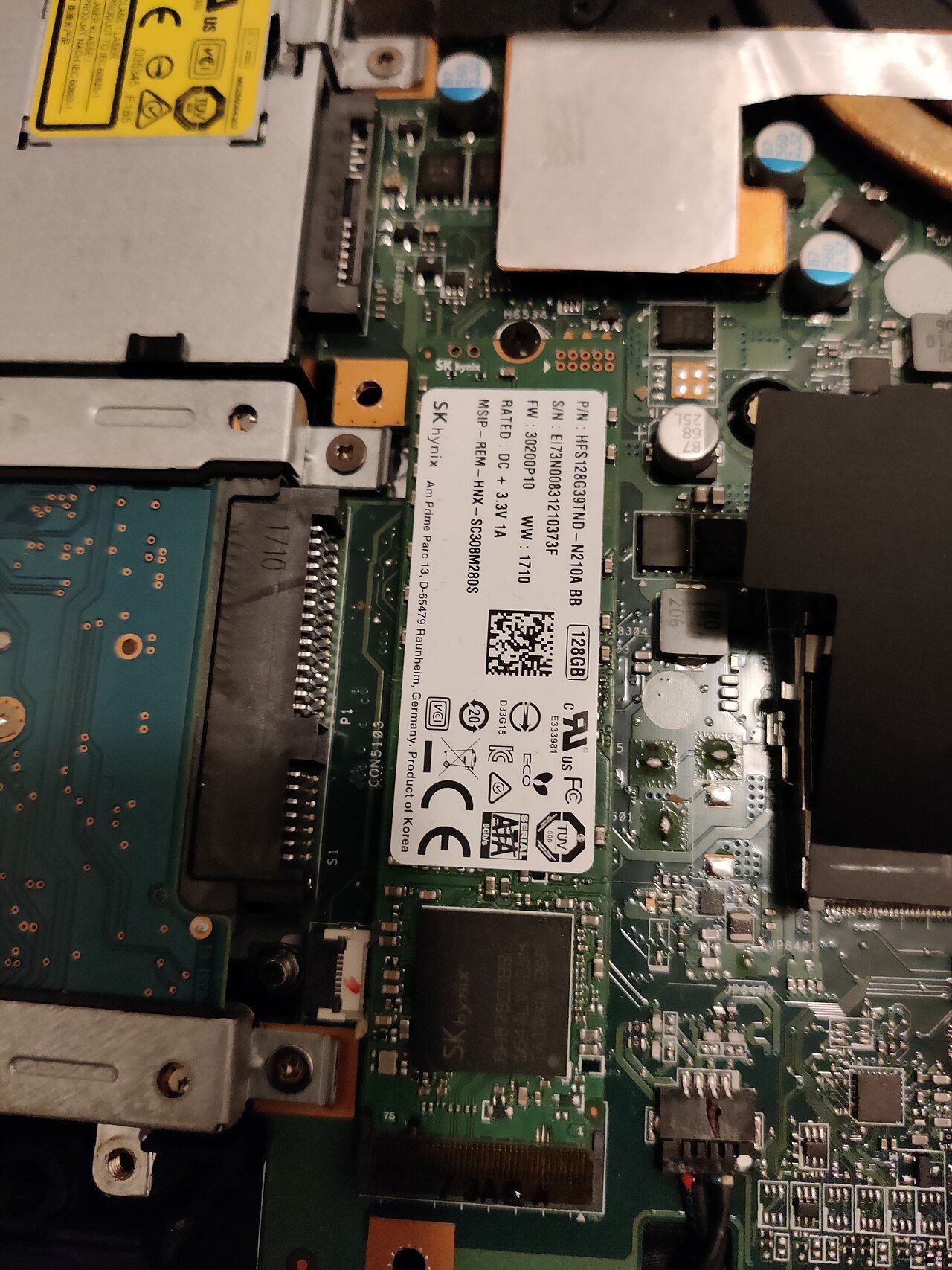
- M.2 NVMe SSD: a small stick for laptops that have an M.2 slot. Many laptops from around 2018 onwards have one, sometimes next to an empty or HDD-filled 2.5-inch bay.
- Check the exact model on the maker’s support page or open the bottom panel and look before you buy. Some M.2 slots take only SATA M.2 drives, and some take only the 2242 (short) size instead of 2280.
Clone or fresh install?
You can copy (clone) your old drive to the SSD with the SSD maker’s tool, for example Samsung Data Migration for Samsung SSDs or the Acronis edition offered by Crucial and WD. On an old laptop that is already cluttered, we prefer a fresh install of Windows 11 on the new SSD: you get the speed of the SSD and a clean Windows at the same time. Back up your files first. Our formatting guide walks through it.
Already have an SSD? Check that it is healthy and not almost full before you blame it. Our guide on how to check SSD health shows how, without installing anything.
STEP 3
Running Out of RAM? Add a Second Stick
The second big fix is RAM, but only if Task Manager shows Memory staying high (80 to 90% or more) during normal use. If Memory sits at 50 to 60%, more RAM will not make the laptop feel any faster.
In 2026, 8GB is tight for Windows 11. Windows itself, a browser with a few tabs, WhatsApp desktop and an antivirus can fill most of it. When RAM is full, Windows moves data to the drive, and that is when tabs reload and apps freeze for a moment when you switch between them.
Check if your RAM can be upgraded
- In Task Manager, open Performance and click Memory.
- Look at Slots used at the bottom right. 1 of 2 means there is a free slot. 2 of 2 means both slots are full.
- Form factor should say SODIMM. If the slots line is missing, or the RAM is LPDDR4X or LPDDR5, the RAM is soldered to the board and cannot be upgraded.
- 8GB with a free slot: add a matching 8GB stick for 16GB in dual channel. On laptops with integrated graphics and in games, dual channel helps beyond the extra capacity.
- 4GB + 4GB, both slots full: replace both with 8GB + 8GB.
- Soldered RAM: no upgrade possible. Focus on Steps 4 to 7, and buy a laptop with 16GB next time.
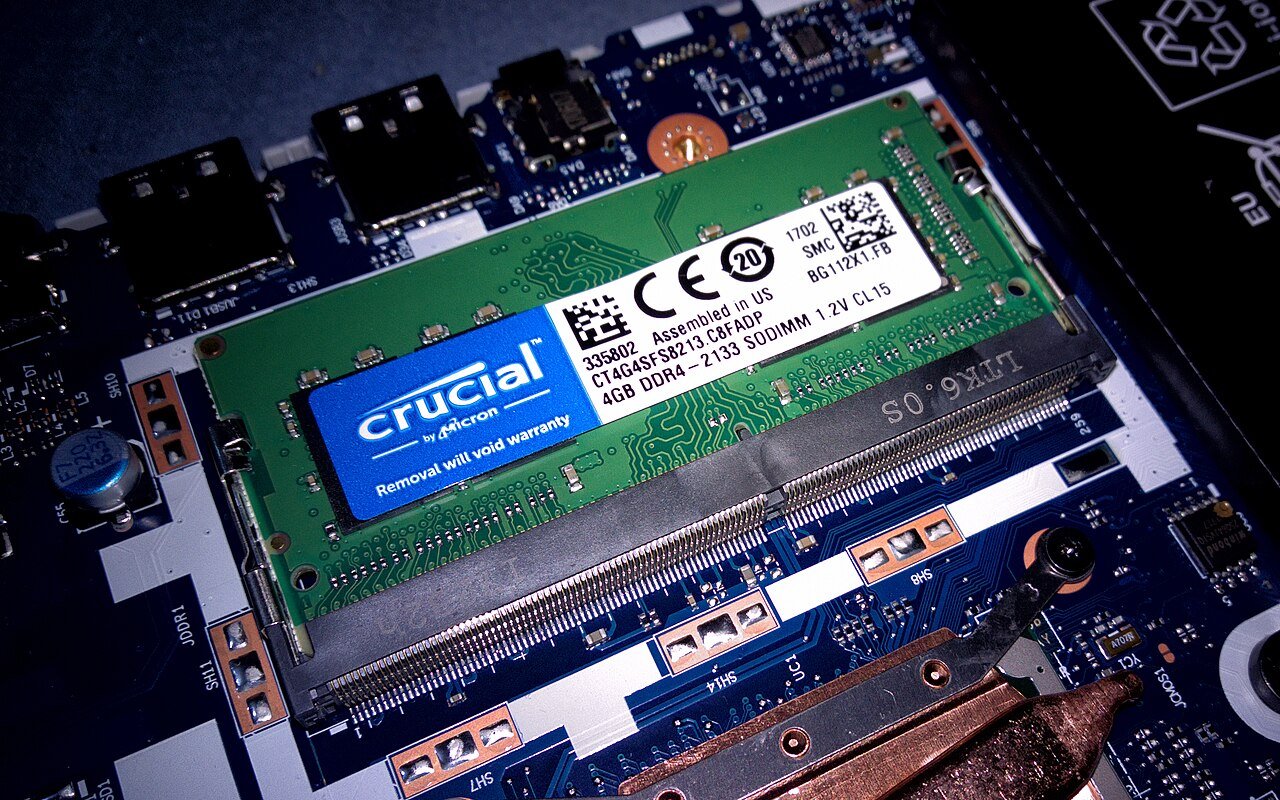
A common mistake: buying a stick of a different type. DDR4 and DDR5 sticks do not fit each other’s slots. Note the type and speed in Task Manager (for example DDR4 3200 MT/s) and buy the same. Our LPDDR5 vs DDR5 guide explains how to tell soldered and upgradeable RAM apart, and is 8GB RAM enough for gaming covers RAM for games.
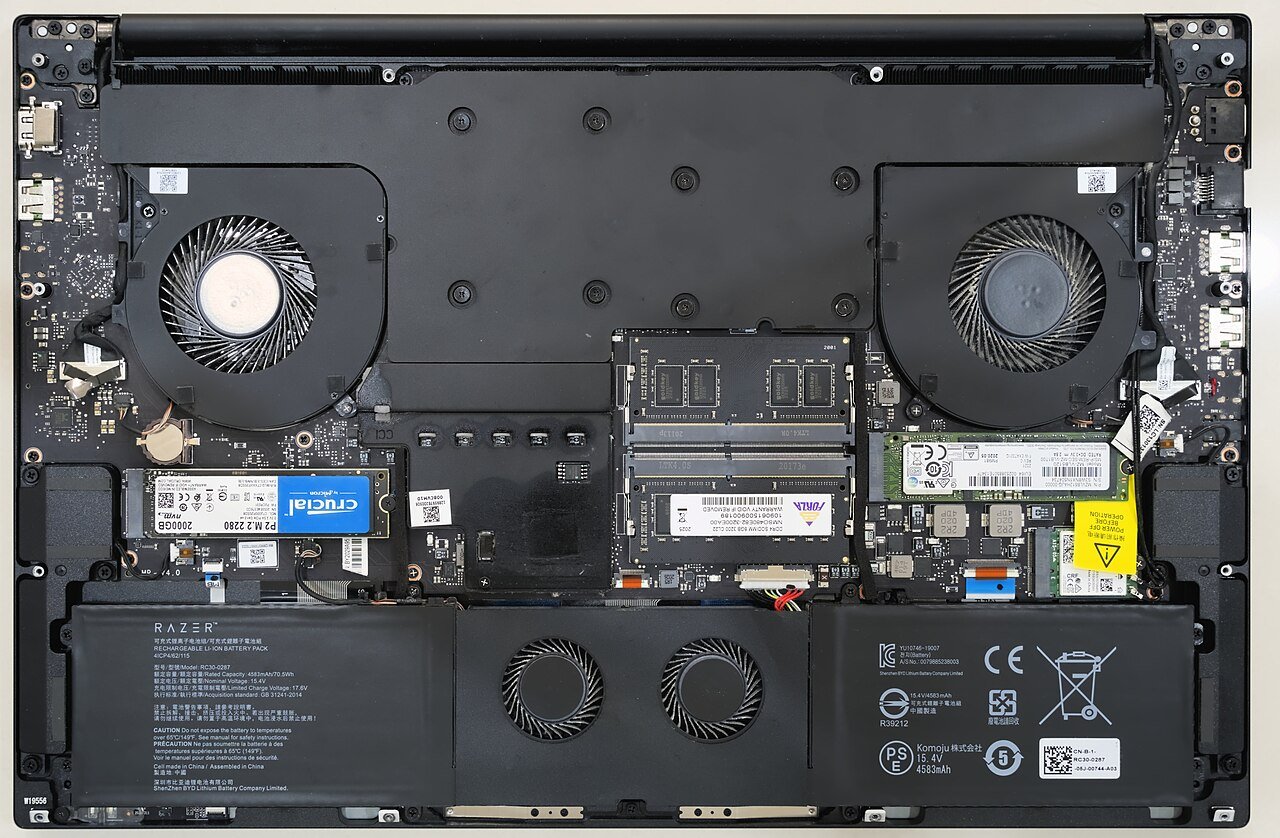
Before you open the bottom panel: if the laptop is under warranty, ask the brand’s service centre or check the warranty terms first. RAM and SSD upgrades are normal on most laptops, but a broken seal or a damaged clip can cause arguments at the service centre.
STEP 4
Cut Startup Apps and Preinstalled Trial Software
This is the biggest free fix, and the one we do first on every new laptop we set up. Most laptops sold in India come with a trial antivirus (usually McAfee or Norton), the brand’s own apps and a few shortcuts to games and offers. Many of them start with Windows and stay in the background.
Turn off startup apps
- Open Task Manager and click Startup apps on the left.
- Sort by Startup impact. Anything marked High is worth a look.
- Right-click an app you do not need at startup and choose Disable. It is not uninstalled, it just stops opening by itself.
You can do the same from Settings > Apps > Startup.
What we disable, and what we leave alone
- Disable: Spotify, Microsoft Teams (personal), Discord, Steam and Epic launchers, Zoom, WhatsApp, game and offer shortcuts, OneDrive if you do not use it, and any “updater” for apps you rarely open.
- Leave on: Windows Security, audio and touchpad drivers (Realtek, Synaptics, ELAN, Dolby), and the brand’s control app on gaming laptops: Lenovo Vantage or Legion Space, Acer NitroSense, HP OMEN Gaming Hub, ASUS Armoury Crate or MyASUS. That app controls fan speed and performance modes. Removing it is a mistake we see often, and it can leave a gaming laptop stuck in a quiet, slower mode.
Uninstall the trial antivirus
Windows Security (built into Windows 11) is enough for most home users. A second antivirus does not double your protection, but two antivirus programs scanning the same files can slow the laptop down. Go to Settings > Apps > Installed apps, find the McAfee or Norton trial, click the three dots and choose Uninstall. If you paid for a full antivirus licence, keep that one and the trial question does not apply.
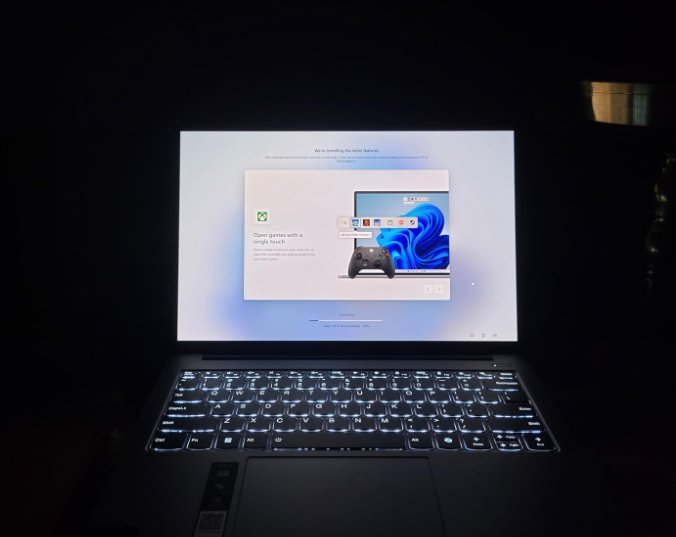
Did the laptop become slow right after installing a “free” or cracked program? That is one of the most common causes we hear about. Run Windows Security > Virus & threat protection > Scan options > Full scan, and remove browser extensions you did not install yourself.
STEP 5
Gaming Laptop Slow? Check the Charger, Power Mode and GPU
On gaming laptops, many “my laptop became slow” complaints are not a fault at all. They come from three settings.
1. Plug in the charger
Gaming laptops limit the processor and the graphics card a lot on battery. A game that runs smoothly when plugged in can stutter badly on battery. This is how they are designed to protect the battery, and no setting fully removes it. For gaming, keep the charger connected.
2. Set the power mode
- Go to Settings > System > Power & battery.
- Under Power mode, choose Best performance when plugged in.
- Also check the brand’s own mode, which often overrides Windows: Fn + Q cycles the modes on Lenovo LOQ and Legion laptops, and Acer NitroSense, HP OMEN Gaming Hub and ASUS Armoury Crate have a performance or Turbo mode.
- Make sure Energy saver (Battery saver on older Windows 11 versions) is not left on.
3. Make sure the game uses the graphics card
Most gaming laptops have two GPUs: a weak one inside the processor and the NVIDIA or AMD graphics card. Occasionally a game or app runs on the weak one.
- Go to Settings > System > Display > Graphics.
- Find the game, click it, choose Options and set High performance (it should show your NVIDIA or AMD GPU).
- If your laptop has a MUX switch, the brand’s control app has a dGPU or Discrete GPU mode. It needs a restart but can help in games.
Our guide on how to check the graphics card in a laptop shows how to confirm which GPU your laptop has.
STEP 6
Heat and Dust: When the Laptop Slows Down After a While
If the laptop is fine for the first few minutes and then gets slower, heat is the usual reason. When the processor gets too hot, it lowers its own speed to protect itself. In Indian summers and dusty cities this happens sooner, and a laptop used on a bed, pillow or blanket blocks its own air vents.
Signs we look for: the fan is loud even on the desktop, the keyboard area gets hot, and in Task Manager the CPU Speed drops well below its base speed while the laptop is busy.
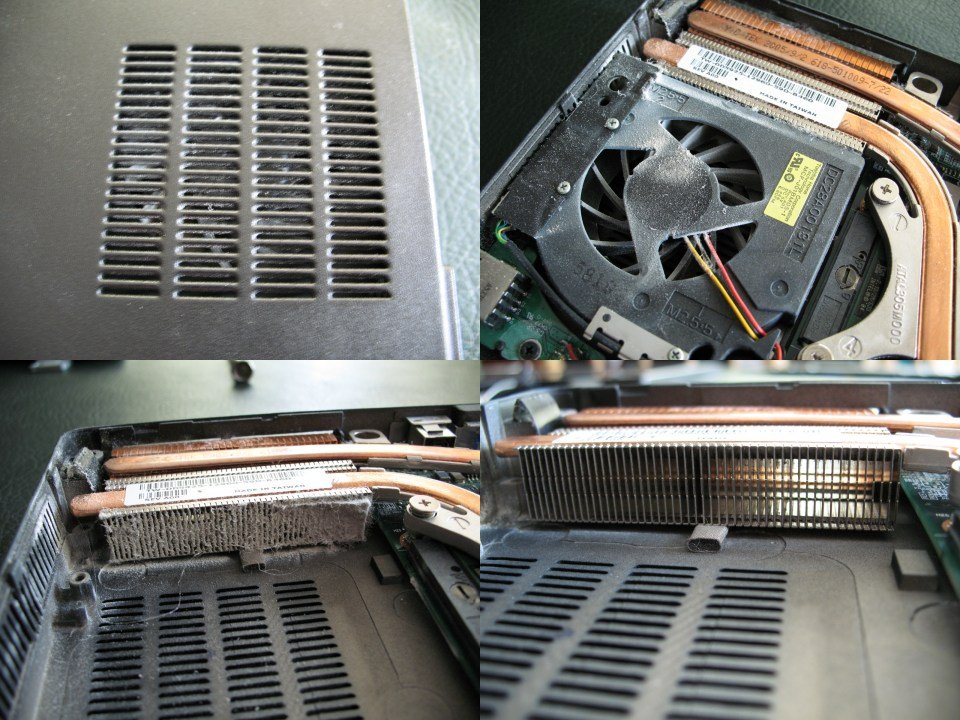
- Use it on a hard, flat surface. A table, a laptop stand or even a hardbound book under the back edge keeps the bottom vents open. This costs nothing and is the first thing we check.
- Clean the vents and fans. Short bursts of compressed air through the vents help a little. A proper clean needs the bottom panel opened. If you are not comfortable doing that, the brand’s service centre or a good local laptop shop can do it.
- Old laptop (3 years or more) still hot after cleaning? The thermal paste between the processor and the heatsink dries out over time. A fresh repaste at a service centre can bring back lost performance.
- Cooling pads help a little with surface temperature, but they do not fix a clogged heatsink.
STEP 7
Free Up the C: Drive and Tame the Browser
These are smaller fixes, but on a laptop with a nearly full drive or 40 open tabs they make a visible difference.
Keep free space on C:
When the C: drive is nearly full, Windows has little room for updates, temporary files and the page file, and everything gets slower. We try to keep at least 15 to 20% of C: free.
- Go to Settings > System > Storage.
- Open Cleanup recommendations and remove old downloads, large unused files and apps you no longer use.
- Turn on Storage Sense so Windows empties the Recycle Bin and temporary files on its own.
- Move photos and videos to an external drive or a second drive.
Chrome and Edge
- In Chrome, go to Settings > Performance and turn on Memory Saver. Tabs you are not using are paused and give back RAM.
- In Edge, go to Settings > System and performance and turn on Efficiency mode.
- Remove extensions you do not use. Coupon, PDF and “free VPN” extensions are the ones we remove most often.
- Press Shift + Esc in Chrome or Edge to open the browser’s own task manager and see which tab or extension is using memory.
Keep Windows and drivers updated
Install pending updates from Settings > Windows Update, and update the graphics driver from NVIDIA, AMD or Intel. Old drivers rarely make a laptop slow on their own, but outdated graphics drivers can make games stutter.
LAST RESORT
Step 8: Reset Windows
If the laptop is still slow after all of the above, and the hardware is healthy, years of installed and uninstalled programs may be the cause. A reset gives you a clean Windows.
Go to Settings > System > Recovery > Reset this PC. Keep my files keeps your documents but removes installed apps. Remove everything is a full clean start. Back up first either way. Our step-by-step guide on how to format a laptop covers both, plus a clean install from a USB drive.
We keep this for last on purpose. A reset takes an afternoon of reinstalling apps and signing in again, and if the real problem is a hard disk or 8GB of RAM, the laptop will feel slow again within weeks.
What Barely Helped: Tricks We Stopped Using
Many “speed up” lists include these. In our experience they make little or no difference on a Windows 11 laptop, and a few can cause problems.
- RAM booster and “cleaner” apps. They empty RAM for a moment, and Windows fills it again as soon as you open something. Many of these apps add their own startup entry and pop-ups.
- Registry cleaners. No speed gain we could notice, and a wrong deletion can break an app or Windows itself.
- Defragmenting an SSD. Do not do it. Windows already runs the right maintenance (TRIM) for SSDs in Defragment and Optimize Drives. Defrag only matters for hard disks, and Windows does it on schedule there too.
- Disabling Windows services with scripts from the internet. It can stop Windows Update, Wi-Fi, printing or the Microsoft Store from working, and the speed gain is too small to notice.
- Turning off Windows Security. A small gain while scanning, and your laptop is unprotected. Not worth it.
- Changing visual effects to “Adjust for best performance”. On very old laptops with weak integrated graphics it helps a little. On a laptop from the last few years we could not feel the difference, and Windows looks worse.
- ReadyBoost with a pen drive. It only ever helped hard disk laptops a little, and a real SSD upgrade is far better.
- Changing the virtual memory (page file) size by hand. Windows manages it well on its own. If you are running out of memory, add RAM.
When Speeding Up Is Not Worth It
Some laptops cannot be made fast enough for today’s Windows 11, whatever you do. We usually suggest a new laptop instead of more fixes when:
- The RAM is 4GB or 8GB and soldered, so it can never be upgraded.
- Storage is eMMC (it shows as a slow drive of 64GB or 128GB), common on very cheap laptops.
- The processor is an old Celeron, Pentium or dual-core chip, and CPU stays near 100% just browsing.
- The repair or upgrade costs more than half of a new laptop’s price.
If that is your case, our buying guides list new, in-stock laptops with SSDs and upgradeable RAM.
Laptops Worth Buying If Yours Is Too Old
Every laptop in these lists is new and in stock in India, with an SSD as standard. Look for 16GB RAM, or at least 8GB with a free slot.
Frequently Asked Questions About Speeding Up a Laptop
How can I speed up my laptop for free?
Open Task Manager and turn off apps you do not need under Startup apps, uninstall the trial antivirus and other preinstalled software you do not use, set Power mode to Best performance when plugged in, keep at least 15 to 20% of the C: drive free, turn on Memory Saver in Chrome, and use the laptop on a hard surface so the vents are not blocked. If it is still slow after that, the cause is usually the hard disk or too little RAM.
What is the fastest way to make an old laptop faster?
If it still has a hard disk (HDD), replace it with an SSD. On an old laptop this makes a bigger difference than any software change. Adding RAM is the next step if Task Manager shows Memory staying above 80 to 90%.
Is an SSD or a RAM upgrade better for a slow laptop?
Check Task Manager. If Disk is near 100% and the drive is an HDD, upgrade to an SSD first. If you already have an SSD and Memory stays high, add RAM. If the laptop has a hard disk and only 4GB or 8GB of RAM, it usually needs both, starting with the SSD.
Why is my laptop so slow all of a sudden?
Common causes are a large Windows Update installing in the background, a newly installed program that starts with Windows, malware or adware, the laptop running on battery or Energy saver, the C: drive filling up, or overheating because the vents are blocked. Open Task Manager and check which of CPU, Memory or Disk is near 100% to narrow it down.
Why is my new laptop slow?
In the first hours and days, Windows Update, driver updates, app updates, OneDrive and search indexing all run in the background. Let it update, restart a few times and remove the trial antivirus and startup apps you do not need. If it is still slow after that, check if it has only 8GB of RAM or eMMC storage.
Does formatting or resetting a laptop make it faster?
It helps if years of installed software are the problem. It does not fix a slow hard disk, too little RAM or overheating, so the laptop will feel slow again soon if one of those is the real cause. Try the other fixes first and keep a reset as the last step.
Do RAM cleaner and PC optimizer apps work?
Not in our experience. RAM cleaners free memory for a moment and Windows fills it again. Registry cleaners do not make a noticeable difference and can break things. Many of these apps also start with Windows and add pop-ups, which makes the laptop slower.
How do I make my gaming laptop faster in games?
Keep the charger connected, set Power mode to Best performance and the brand’s own mode (for example Fn + Q on Lenovo LOQ, or Turbo in Acer NitroSense or ASUS Armoury Crate) to performance, check that the game uses the NVIDIA or AMD graphics card under Settings > System > Display > Graphics, update the graphics driver, and keep the vents clear.
Final Verdict
Do not start with a list of 20 tips. Open Task Manager, see what is full, and fix that first. An HDD to SSD swap and a second RAM stick are the two upgrades that make a slow laptop feel new. Startup apps, trial antivirus, the power mode and heat are the free fixes that matter. Cleaner apps and registry tweaks are not worth your time, and a Windows reset is the last step, after the hardware has been checked.

Getmyelectronic is a buying guide for laptops, monitors, graphics cards and gaming PC accessories in India. The guides are written by Rajarajan, a gamer and PC hardware enthusiast. The aim is simple: help you pick the right product for your budget and your use, without the marketing noise