UPDATED OCTOBER 2026 | WINDOWS 11 | STEP-BY-STEP GUIDE
Your laptop’s processor (CPU) decides how fast it opens apps, handles many browser tabs, edits videos and runs games. Knowing its exact name helps you check whether software will run, compare laptops, or describe your laptop when you sell it.
This guide shows six easy ways to check the processor in a Windows 11 laptop, how to see its cores, speed and generation, and how to read names like Intel Core i5-1335U or AMD Ryzen 5 7530U.
Quick Answer: How Do You Check the Processor in a Laptop?
Press Windows + I, go to System > About, and read the Processor line under Device specifications. It shows the full name and base speed, for example “Intel(R) Core(TM) i3-3220 CPU @ 3.30GHz 3.30 GHz”. For cores and threads, open Task Manager > Performance > CPU.
- Fastest: Settings > System > About
- Cores, threads and cache: Task Manager > Performance > CPU
- Full system summary: Windows + R > msinfo32
- Generation: the first digits of the model number (1335U = 13th Gen)
6 Ways to Check Your Laptop's Processor
Swipe sideways on mobile to see every column.
| Method | How to open it | What it tells you |
|---|---|---|
|
Settings > About |
Windows + I > System > About |
Processor name, base speed, RAM, 32/64-bit |
|
Task Manager |
Ctrl + Shift + Esc > Performance > CPU |
Name, cores, threads, cache, live speed |
|
System Information |
Windows + R > msinfo32 |
Name, speed, cores and threads in one line |
|
PowerShell |
Terminal > Get-CimInstance command |
Name, cores, threads and max speed |
|
Device Manager |
Windows + X > Device Manager > Processors |
Processor name, one entry per thread |
|
BIOS, sticker or box |
At start-up, or on the laptop body |
Processor family before Windows starts |
METHOD 1
Method 1: Settings > System > About (Fastest)
- Press Windows + I to open Settings. You can also right-click Start and choose System.
- Make sure System is selected on the left, then scroll down and click About.
- Under Device specifications, read the Processor line. In our example it says Intel(R) Core(TM) i3-3220 CPU @ 3.30GHz 3.30 GHz.
- On recent Windows 11 updates, a Processor card at the top of the About page shows the same name. The page also lists Installed RAM and System type (64-bit is standard on all modern laptops).
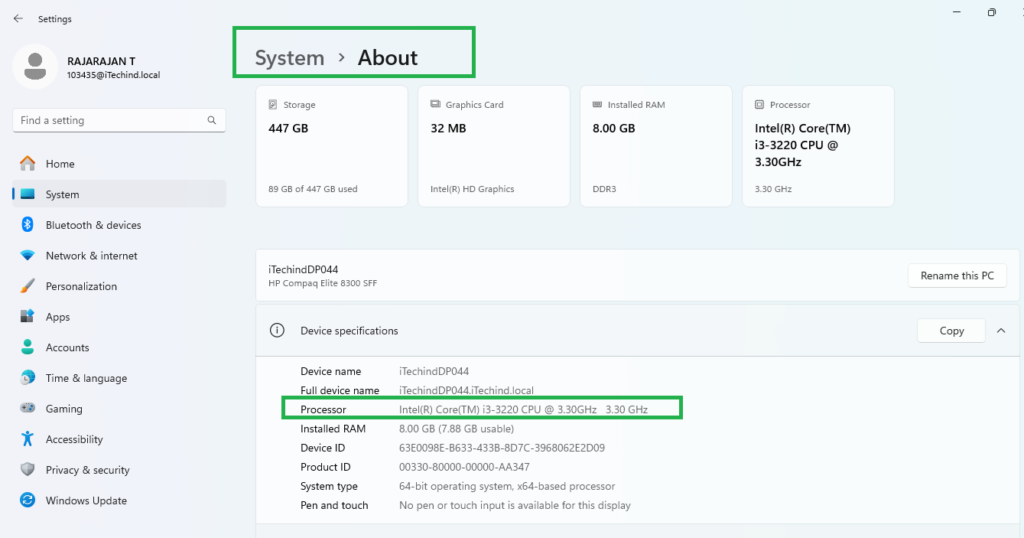
The number at the end, 3.30 GHz here, is the base speed. Many newer laptop processors run much faster than this when needed (Turbo Boost). For example, the Core i5-1335U has a 1.30 GHz base speed but boosts up to 4.6 GHz. Older chips such as the Core i3-3220 have no Turbo Boost, so they stay at their base speed.
METHOD 2
Method 2: Task Manager (Cores, Threads and Speed)
Task Manager shows the processor’s name along with details that Settings does not.
- Press Ctrl + Shift + Esc to open Task Manager.
- Click Performance on the left, then CPU.
- Read the processor name at the top right, for example Intel(R) Core(TM) i3-3220 CPU @ 3.30GHz.
- Below the graph, check Base speed, Sockets, Cores, Logical processors (threads), Virtualization and the L1, L2 and L3 cache.
- Speed on the left shows the current clock speed (3.29 GHz in our example), which goes up and down with the load.
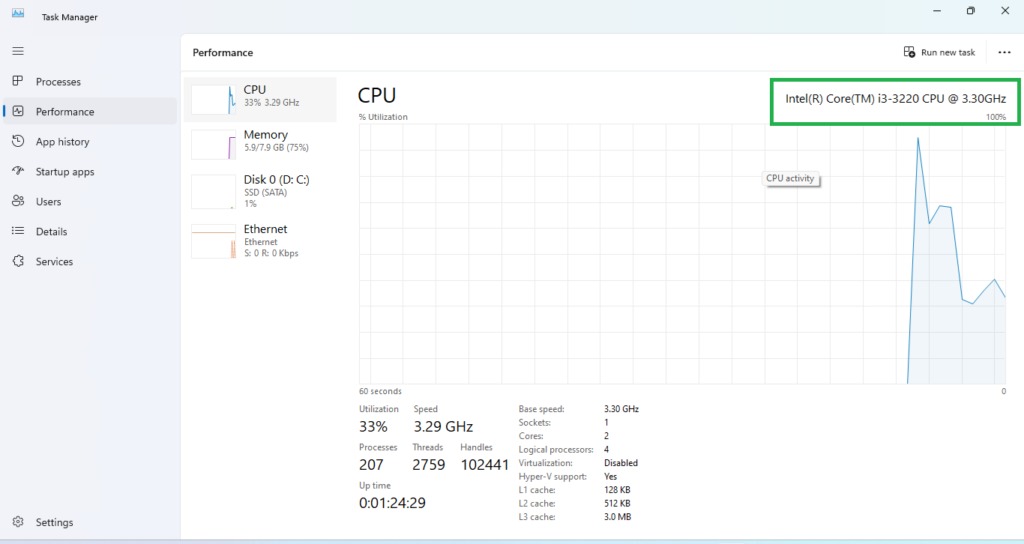
Cores are the physical processing units, and logical processors are threads. The Core i3-3220 in our example has 2 cores and 4 logical processors, because Hyper-Threading lets each core run two threads. Intel’s newer chips mix performance and efficient cores, so a 10-core i5-1335U shows 12 logical processors.
METHOD 3
Method 3: System Information (msinfo32)
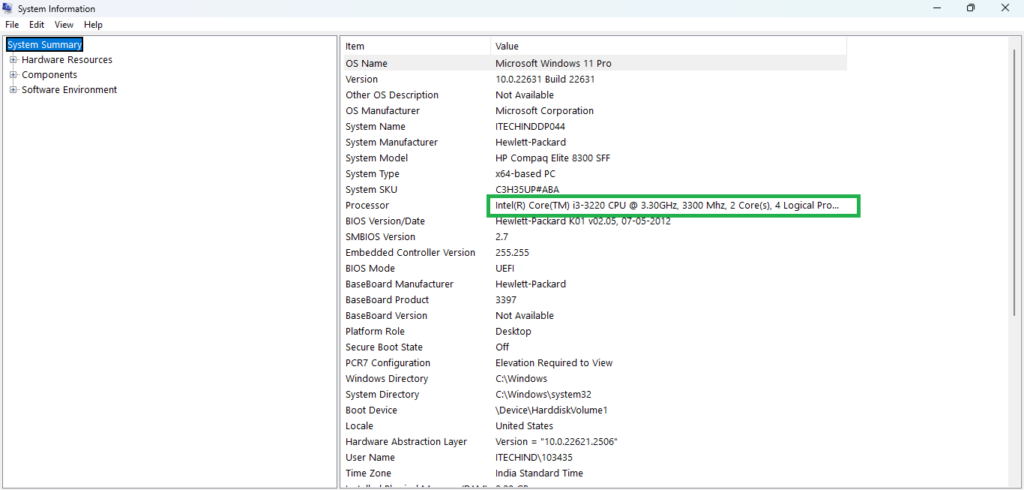
- Press Windows + R, type msinfo32 and press Enter.
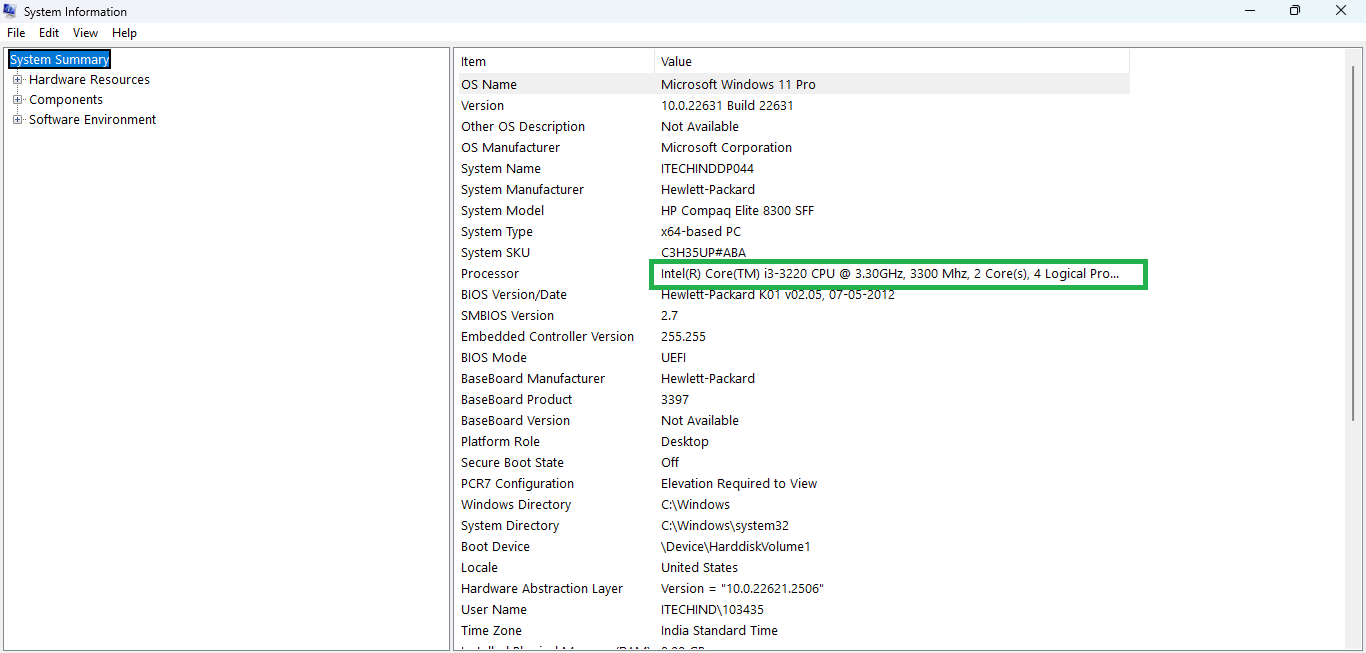
- On the System Summary page, find the Processor row.
- It shows everything in one line, for example “Intel(R) Core(TM) i3-3220 CPU @ 3.30GHz, 3300 Mhz, 2 Core(s), 4 Logical Processor(s)”.
This page also shows the BIOS version and the System Model, which you need when downloading drivers for your laptop.
METHOD 4
Method 4: PowerShell or Command Prompt
- Right-click Start and choose Terminal, or search for Windows PowerShell in the Start menu.
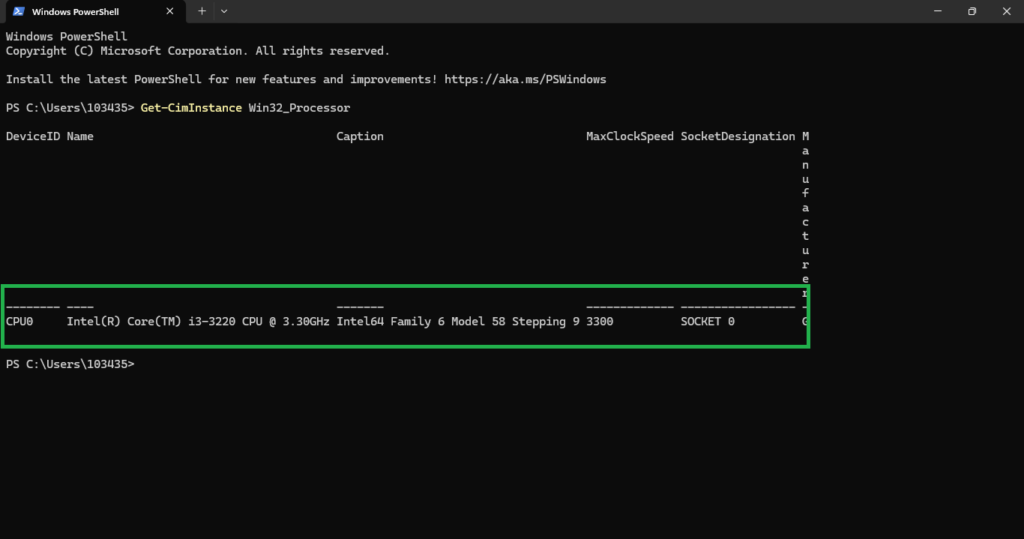
- Type
Get-CimInstance Win32_Processorand press Enter. - The result shows DeviceID (CPU0), the processor Name, Caption (family, model and stepping), MaxClockSpeed in MHz and SocketDesignation. In our example, MaxClockSpeed 3300 means 3.3 GHz.
To see cores and threads too, use Get-CimInstance Win32_Processor | Select Name, NumberOfCores, NumberOfLogicalProcessors, MaxClockSpeed. In Command Prompt, systeminfo also lists the processor, but only as a family code, so PowerShell is easier to read.
METHOD 5
Method 5: Device Manager
- Press Windows + X and click Device Manager.
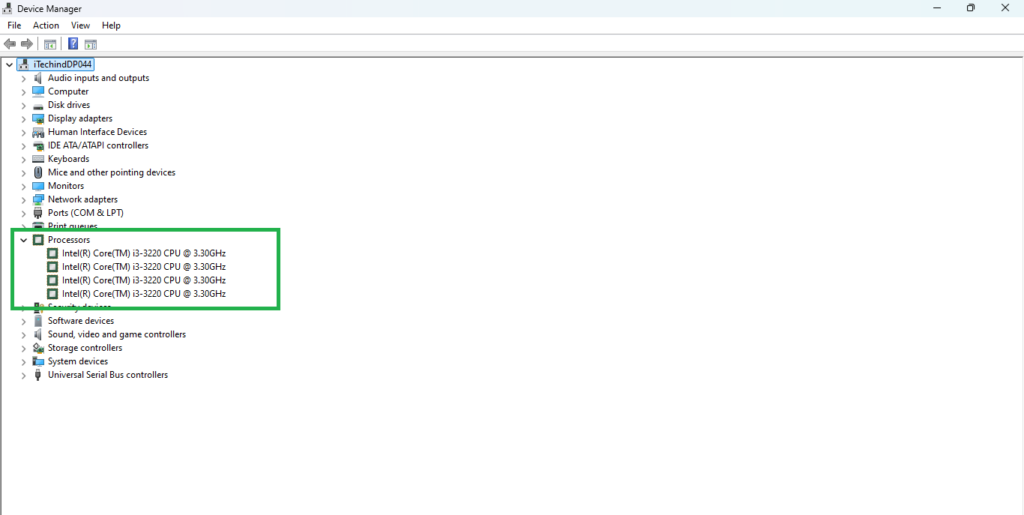
- Expand Processors.
- You will see the processor name repeated several times.
Each entry is one thread, not one core. In our example, four entries of Intel Core i3-3220 mean 4 threads, which come from 2 physical cores. Use Task Manager to see the real number of cores.
METHOD 6
Method 6: Without Windows: BIOS, Sticker or Box
If the laptop will not start, or you are checking a laptop in a shop:
- BIOS/UEFI: switch on the laptop and press F2 (most brands), F10 (HP) or Delete (MSI). The main page shows the processor type.
- Stickers: many laptops have an Intel Core, Intel Core Ultra or AMD Ryzen sticker near the keyboard. It shows the family (i5, Ryzen 7) but not the exact model.
- Box and invoice: the full model and processor are printed on the box label and in the Amazon or Flipkart order details.
- Brand website: search the laptop’s model number (on the bottom sticker) on the maker’s site for the exact processor.
How to Read a Laptop Processor Name
Intel Core i3, i5, i7 and i9
Take the Intel Core i3-3220 from our screenshots. i3 is the tier (i3 basic, i5 mid-range, i7 and i9 high-end). With a 4-digit number, the first digit is the generation, so 3220 is 3rd Gen and i5-8250U is 8th Gen. The remaining digits, 220, are the model within that tier. Newer chips use 5 digits: in i5-1335U, 13 means 13th Gen, and the letter at the end (U) shows the power class.
Intel Core Ultra and Intel Core (2024 onwards)
Intel dropped the “i”. Core Ultra 5 125H and Core Ultra 7 155H are Series 1. Core Ultra 7 255H and Core Ultra 7 258V are Series 2, the newer chips. Plain Core 5 120U or Core 7 240H without “Ultra” are based on older designs and cost less.
AMD Ryzen 3, 5, 7 and 9
In Ryzen 5 7530U, Ryzen 5 is the tier. In the model number, 7 is the model year (2023), 5 the segment, 3 the architecture (Zen 3) and the last digit a small step within it. The newest AMD chips use the Ryzen AI name, such as Ryzen AI 5 340 and Ryzen AI 9 365.
What the Letters at the End Mean
Swipe sideways on mobile to see every column.
| Suffix | Meaning | Typical laptops |
|---|---|---|
|
U |
Low power (about 15 to 28W), best battery life |
Thin and light, student and office laptops |
|
P |
Balanced performance (Intel 12th and 13th Gen) |
Premium thin laptops |
|
V |
Intel Core Ultra 200V, very efficient with strong graphics |
Premium thin laptops, Copilot+ PCs |
|
H / HS |
High performance (about 35 to 45W) |
Gaming and creator laptops |
|
HX |
Highest performance, desktop-class cores |
High-end gaming laptops |
|
G1 to G7 |
Intel 11th Gen graphics level (G7 is the best) |
Older thin laptops |
Which Laptop Processor Is Good Enough?
- Study, office and browsing: Intel Core i3 (12th Gen or newer), Core 3, or AMD Ryzen 3 7000 series. Choose i5 or Ryzen 5 if you can.
- Coding, multitasking and photo editing: Core i5 / Core Ultra 5 or Ryzen 5 (U or H), with 16GB RAM.
- Gaming and video editing: H or HX chips, such as Core i5-13420H, Core i7-14700HX or Ryzen 7 7840HS, paired with an RTX graphics card.
Tip: You cannot upgrade a laptop processor. It is soldered to the motherboard, so choose the right one when you buy. A newer i5 often beats an older i7, so compare the generation, not just the tier.
Planning to Buy a New Laptop?
Our buying guides compare the processors, graphics cards and prices of new laptops on Amazon India, so you can pick the right CPU for your budget.
Frequently Asked Questions About Laptop Processors
How do I check my laptop processor generation?
Look at the model number in Settings > System > About. For Intel 4-digit models, the first digit is the generation, so i3-3220 is 3rd Gen. For 5-digit models, the first two digits are the generation, so i5-1335U is 13th Gen and i5-12450H is 12th Gen. For AMD 4-digit models such as Ryzen 5 7530U, the first digit is the series year.
How do I check how many cores my laptop processor has?
Open Task Manager with Ctrl + Shift + Esc, click Performance, then CPU. The Cores and Logical processors values show the cores and threads. System Information (msinfo32) also shows both in the Processor row.
Which is better for a laptop, Intel Core i5 or AMD Ryzen 5?
It depends on the generation. A recent Ryzen 5 7000 series and a 12th or 13th Gen Core i5 are close in everyday use. AMD often gives longer battery life at the same price, while Intel H-series chips are popular in gaming laptops. Compare the exact models, not just the names.
Can I upgrade my laptop processor?
No. Almost all laptop processors are soldered to the motherboard. You can usually upgrade the SSD and sometimes the RAM, but for a faster CPU you need a new laptop.
How do I check my laptop CPU temperature?
Windows 11 Task Manager does not show CPU temperature. Use your laptop maker’s app (such as Lenovo Vantage, MyASUS or HP OMEN Gaming Hub) or the free tool HWiNFO. Under heavy load, 80 to 95°C is common for laptop CPUs.
The Short Version
Settings > System > About is the quickest way to check the processor in your laptop. Use Task Manager for cores, threads and speed, and msinfo32 for a full summary. Read the generation and the letter at the end of the name to understand how powerful the processor really is.

Getmyelectronic is a buying guide for laptops, monitors, graphics cards and gaming PC accessories in India. The guides are written by Rajarajan, a gamer and PC hardware enthusiast. The aim is simple: help you pick the right product for your budget and your use, without the marketing noise