UPDATED OCTOBER 2026 | WINDOWS 11 | STEP-BY-STEP GUIDE
Formatting a laptop means wiping it and reinstalling a fresh copy of Windows. It fixes a slow or virus-hit laptop, and it is a must before you sell or give one away.
You do not need a CD or a technician. Windows 11 has a built-in reset that does the job in about an hour, and your Windows licence activates again by itself. This guide covers the backup you must take first, three ways to format, and what to do afterwards.
Quick Answer: How Do You Format a Laptop?
Back up your files, then open Settings > System > Recovery and click Reset PC. Choose Remove everything, pick Cloud download or Local reinstall, and click Reset. Windows erases the drive and reinstalls itself; Windows activates again automatically.
- Easiest: Settings > System > Recovery > Reset PC
- Windows will not start: Shift + Restart > Troubleshoot > Reset this PC
- Cleanest: fresh install from a Windows 11 USB drive
- Selling the laptop: turn on "Clean data" in the reset settings
Before You Format: 6 Things to Do First
Formatting deletes everything on the drive. Take five minutes to check these first:
- Back up your files. Copy Documents, Desktop, Pictures, Downloads and WhatsApp or browser data to an external drive, a pen drive, OneDrive or Google Drive.
- Note your app logins. Make sure you know the passwords for your Microsoft account, email and other apps, because you will sign in again.
- Save the BitLocker recovery key. Many Windows 11 laptops encrypt the drive. Find the key at account.microsoft.com/devices/recoverykey in case the reset asks for it.
- Check MS Office. The Office Home and Student that comes with most new laptops in India is linked to your Microsoft account, so you can reinstall it after the format by signing in.
- Plug in the charger. A reset can take an hour or more, and the laptop must not switch off halfway.
- Connect to Wi-Fi if you plan to use Cloud download. It needs about 4 GB of data.
Tip: You do not need your Windows product key. Laptops sold with Windows 11 have a digital licence, so Windows activates again on its own after the format.
Which Format Method Should You Use?
Swipe sideways on mobile to see every column.
| Method | Deletes your files? | Needs a USB drive? | Time | Best for |
|---|---|---|---|---|
|
Reset: Keep my files |
No (apps and settings are removed) |
No |
30 to 60 min |
Fixing problems without losing documents |
|
Reset: Remove everything |
Yes |
No |
45 to 90 min |
A clean start, fixing viruses or slowdowns |
|
Remove everything + Clean data |
Yes, erased securely |
No |
2 hours or more |
Selling or giving away the laptop |
|
Clean install from USB |
Yes, including all partitions |
Yes, 8 GB or more |
30 to 60 min |
Badly broken Windows, new SSD, removing all bloatware |
METHOD 1
Method 1: Format a Laptop from Settings (Reset This PC)
This is the easiest way and works on every Windows 11 laptop, from HP and Dell to Lenovo, ASUS and Acer.
- Press Windows + I to open Settings.
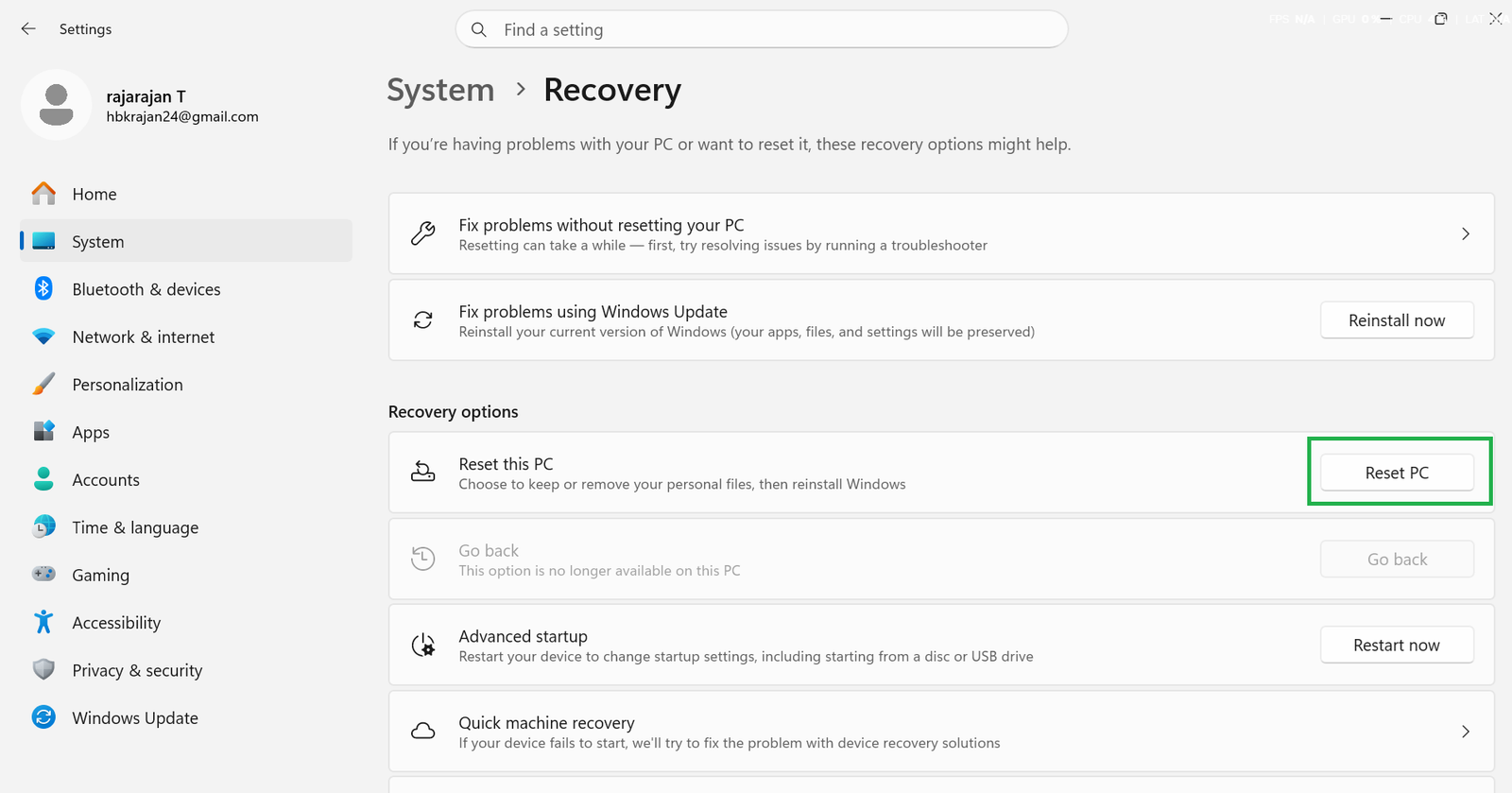
- Go to System > Recovery.
- Next to Reset this PC, click Reset PC.
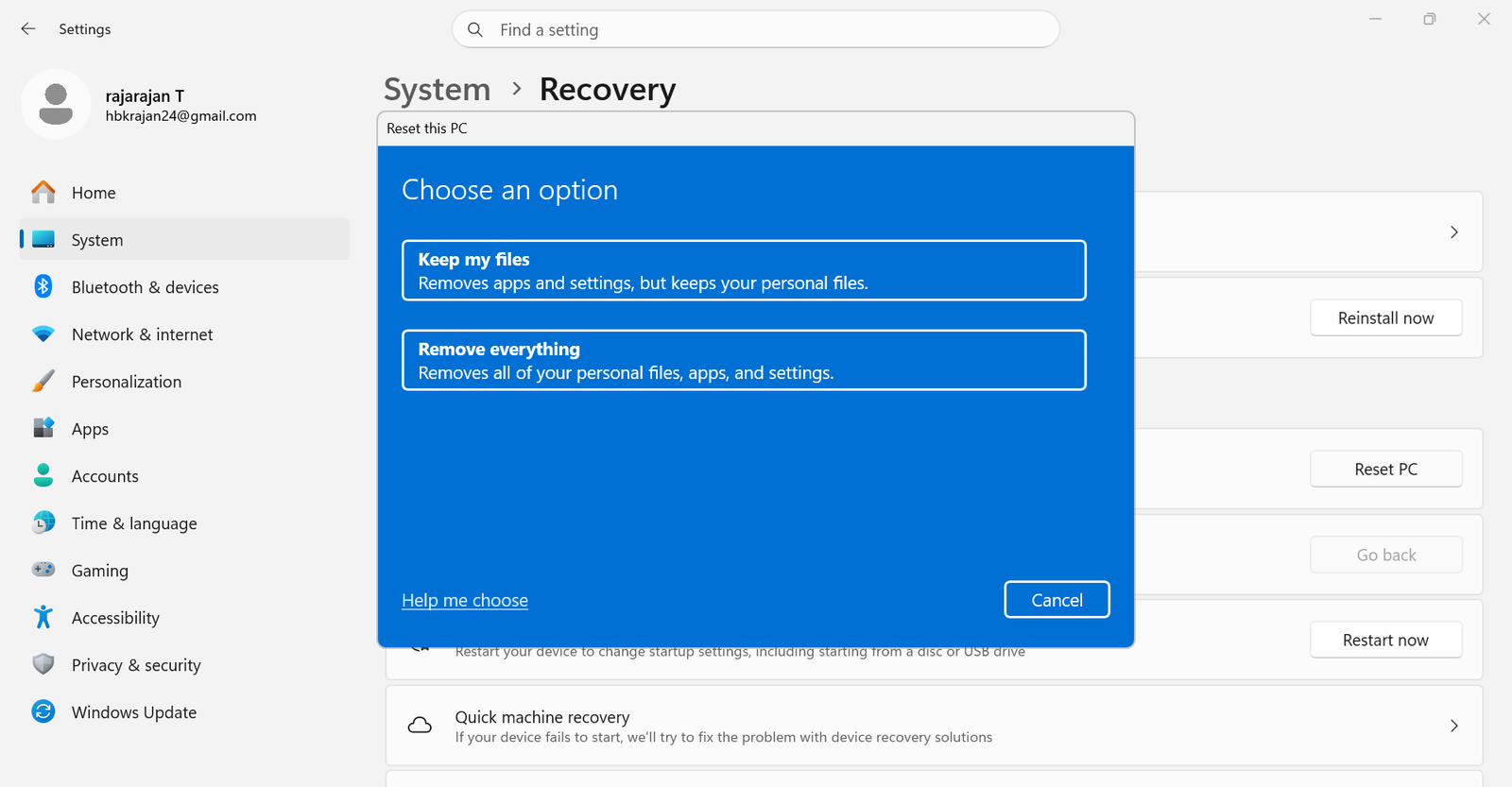
- Choose Remove everything to format the laptop fully. Choose Keep my files only if you want to keep your documents.
- Choose Cloud download (downloads a fresh copy of Windows) or Local reinstall (uses the files already on the laptop and needs no internet).
- On the Additional settings screen, click Change settings if you want to set Clean data to Yes. This wipes the drive securely, which is slower but best before selling.
- Click Next, read the summary, and click Reset.
- The laptop restarts several times. When it finishes, you see the Windows setup screens: choose India, your keyboard, Wi-Fi and Microsoft account.
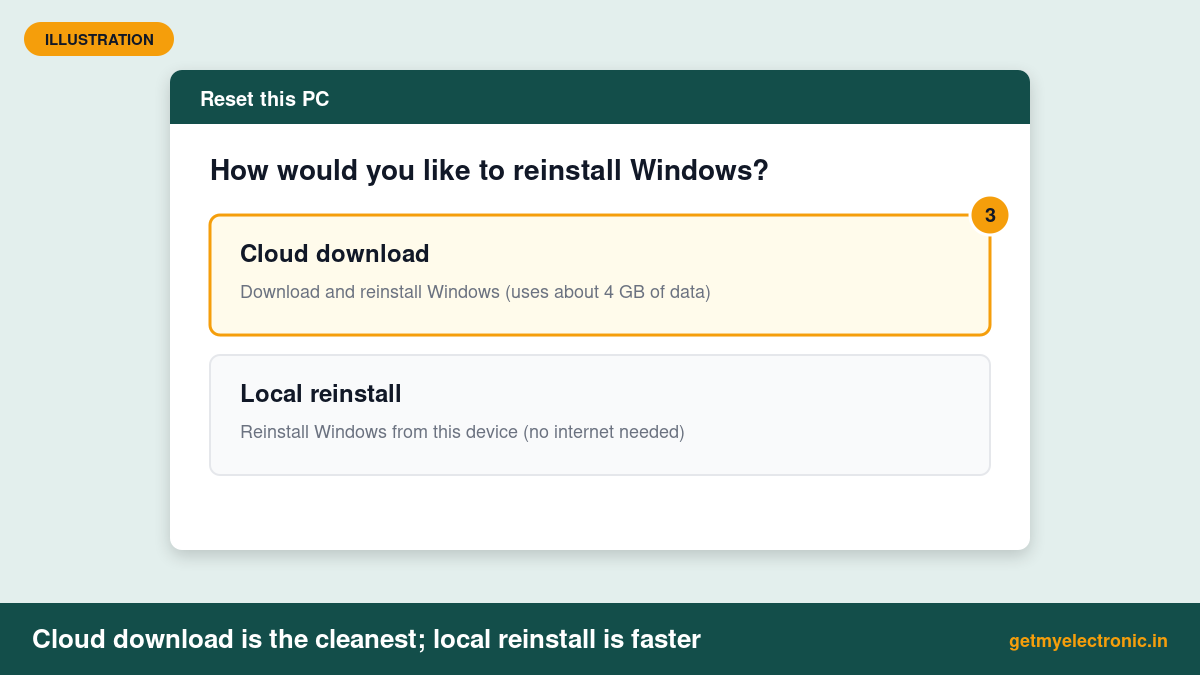
Tip: If Local reinstall fails with an error, try Cloud download. It does not depend on the recovery files already on your laptop, which may be damaged.
METHOD 2
Method 2: Format a Laptop That Will Not Start (Recovery Screen)
If Windows crashes, freezes at start-up or you have forgotten the password, you can still reset the laptop from the blue recovery screen.
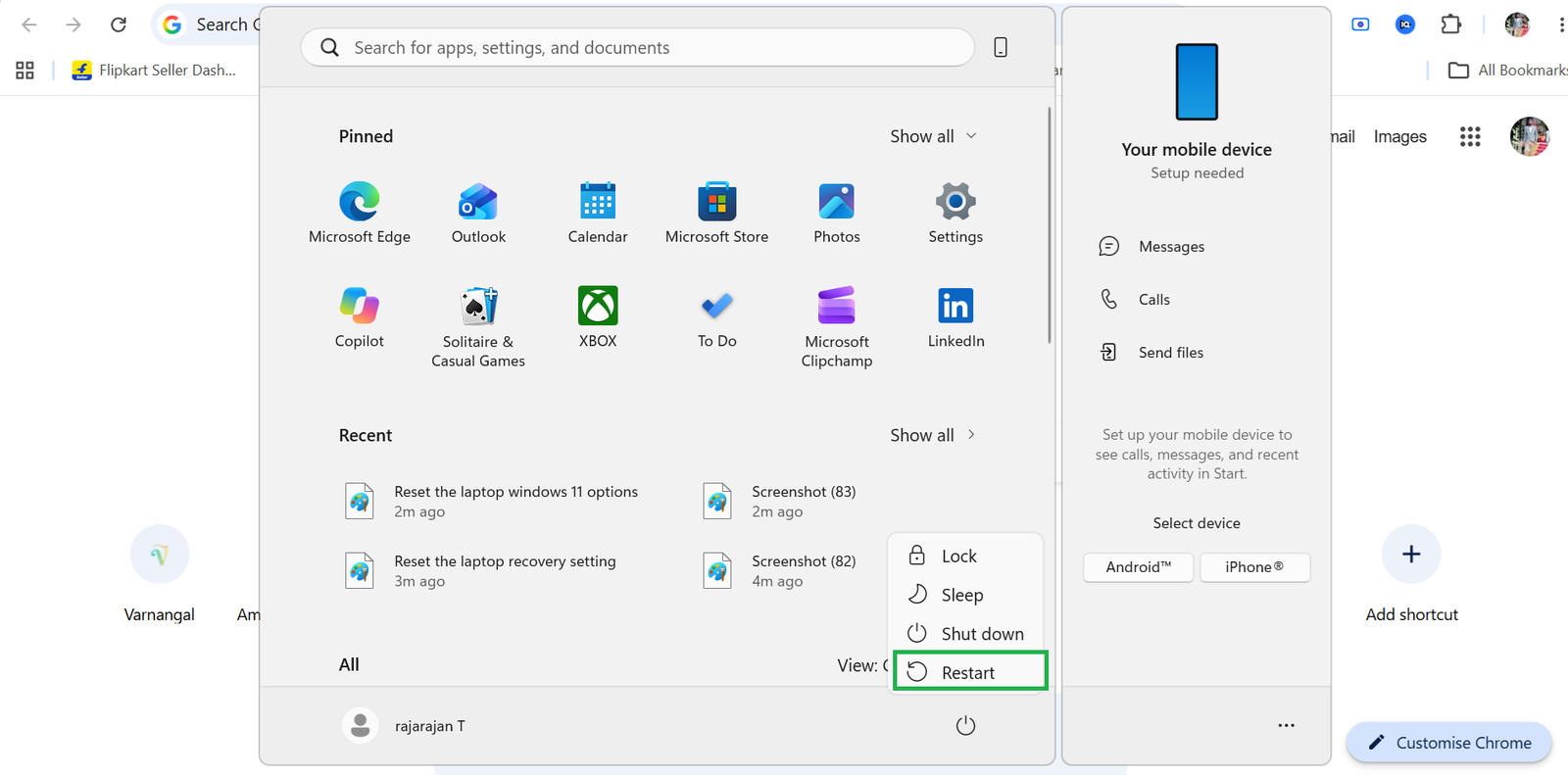
- On the sign-in screen, click the Power icon, then hold Shift and click Restart.
- If Windows will not load at all, switch the laptop on and off at the Windows logo two or three times. Windows then opens Automatic Repair; click Advanced options.
- Click Troubleshoot > Reset this PC.
- Choose Remove everything, then Cloud download or Local reinstall, and follow the same steps as Method 1.
If the screen asks for a BitLocker recovery key, enter the key you saved from your Microsoft account.
METHOD 3
Method 3: Clean Install Windows 11 from a USB Drive
A clean install gives the freshest start. It removes every partition, including the maker’s extra apps, and is the method to use after fitting a new SSD. You need another working PC and a pen drive of 8 GB or more, which will be erased.
Step 1: Make a Windows 11 USB drive
- On a working PC, open Microsoft’s official Windows 11 download page.
- Under Create Windows 11 Installation Media, click Download Now and run the Media Creation Tool.
- Accept the terms, keep the recommended options, choose USB flash drive and select your pen drive. The tool downloads Windows and prepares the drive.
Step 2: Boot the laptop from the USB drive
- Plug the USB drive into the laptop and switch it on.
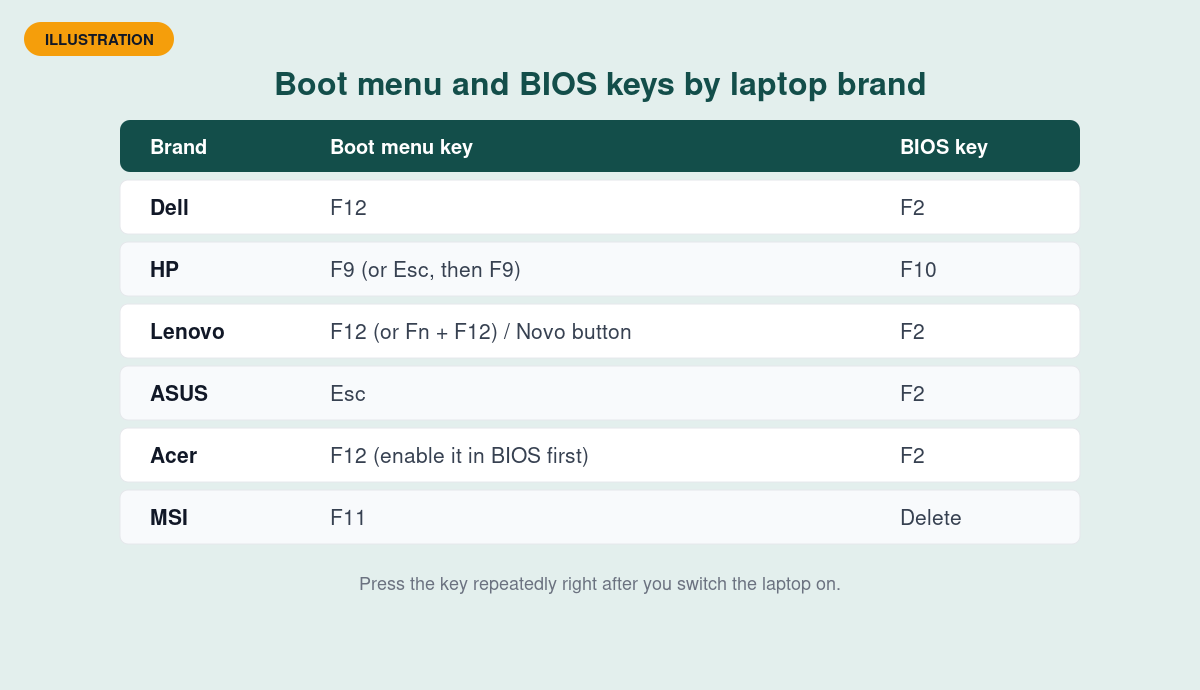
- Press the boot menu key repeatedly as soon as the screen lights up (see the table below).
- Choose the USB drive from the list, usually shown with its brand name and “UEFI”.
Step 3: Install Windows 11
- Choose your language, time format and keyboard, then click Next.
- Select Install Windows 11 and tick that everything will be deleted, if asked.
- On the product key screen, click I don’t have a product key. Your laptop’s digital licence activates Windows later.
- Pick the same edition your laptop came with, usually Windows 11 Home.
- On the drive screen, delete each partition on Disk 0, select the Unallocated Space and click Next. Leave any second drive (Disk 1) alone if it holds your data.
- Wait for Windows to install and restart, then complete the setup screens.
Tip: If the setup shows no drives to install on, your laptop needs a storage driver (often Intel RST or VMD). Download it from your laptop maker’s support page, copy it to the USB drive and click Load driver.
Other Options: Brand Recovery and Formatting Only One Drive
Laptop maker recovery tools
Many brands offer their own recovery as well. Dell laptops have SupportAssist OS Recovery, HP has the HP Cloud Recovery Tool, Lenovo has the Novo button menu on many models, and older ASUS and Acer laptops use F9 or Alt + F10 at start-up. These restore the laptop to its factory state, including the maker’s apps.
Format only the D: drive
To wipe just a data drive, not Windows: open File Explorer > This PC, right-click the drive (for example D:), choose Format, keep NTFS, tick Quick Format and click Start. You cannot format the C: drive this way while Windows is running.
What to Do After Formatting Your Laptop
- Run Windows Update from Settings > Windows Update, and install the optional driver updates too.
- Install your brand’s app: MyASUS, Lenovo Vantage, HP Support Assistant or Dell SupportAssist. It installs the right drivers and BIOS updates.
- Reinstall MS Office by signing in at office.com with the Microsoft account it was linked to.
- Restore your files from your backup.
- Keep Microsoft Defender on. It is built into Windows 11 and free.
Planning to Buy a New Laptop?
If your laptop is still slow after a fresh format, the hardware may be the problem. Our buying guides compare the best new laptops on Amazon India by budget.
Frequently Asked Questions About Formatting a Laptop
Will formatting my laptop remove Windows activation?
No. Laptops sold with Windows 10 or 11 have a digital licence linked to the hardware, so Windows activates again automatically after a reset or clean install once you connect to the internet.
How long does it take to format a laptop?
A normal reset takes about 45 to 90 minutes. Cloud download adds time to download about 4 GB. Turning on Clean data can take two hours or more, depending on the size and speed of the drive.
Can I format my laptop without the password?
Yes. On the sign-in screen, hold Shift and click Power > Restart, then go to Troubleshoot > Reset this PC and choose Remove everything. If the drive is encrypted, you will need the BitLocker recovery key from your Microsoft account.
Does formatting remove viruses?
Choosing Remove everything or doing a clean install removes almost all viruses and malware, because the whole Windows drive is erased. Do not restore program files or unknown downloads from your old backup afterwards.
Will I lose MS Office after formatting?
No. If Office came with your laptop or you bought it, it is linked to your Microsoft account. After formatting, sign in at office.com and install it again at no cost.
The Short Version
For most people, Settings > System > Recovery > Reset PC with Remove everything is the simplest way to format a laptop. Use the Shift + Restart recovery screen if Windows will not start, and a USB clean install for the freshest result. Always back up first, and turn on Clean data before you sell.

Getmyelectronic is a buying guide for laptops, monitors, graphics cards and gaming PC accessories in India. The guides are written by Rajarajan, a gamer and PC hardware enthusiast. The aim is simple: help you pick the right product for your budget and your use, without the marketing noise