UPDATED OCTOBER 2026 | WINDOWS 11 | STEP-BY-STEP GUIDE
Need to save what is on your laptop screen? Windows 11 has several built-in ways to take a screenshot, and none of them need extra software. You can capture the whole screen, one window, or just a small area, then paste it into WhatsApp, an email or a document.
This guide shows every method step by step, where your screenshots are saved, and what to do if the Print Screen key does not work on your HP, Dell, Lenovo, ASUS or Acer laptop.
Quick Answer: How Do You Take a Screenshot on a Laptop?
Press Windows + Shift + S, drag over the area you want, and the screenshot is copied so you can paste it anywhere with Ctrl + V. To save the full screen as a file instead, press Windows + PrtSc. It goes to Pictures > Screenshots.
- Select an area: Windows + Shift + S
- Save the full screen as a file: Windows + PrtSc
- Copy only the active window: Alt + PrtSc
- PrtSc shares a key with something else? Add the Fn key
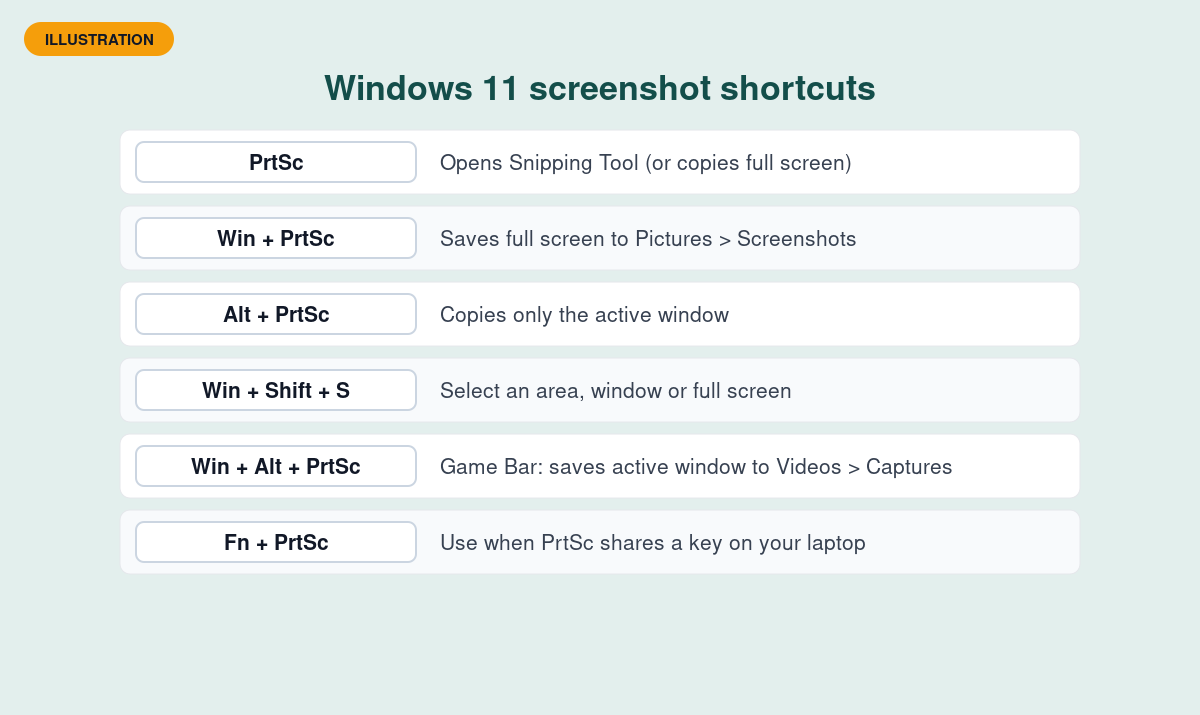
All Laptop Screenshot Shortcuts at a Glance
Swipe sideways on mobile to see every column.
| Shortcut | What it captures | Where it goes |
|---|---|---|
|
Windows + Shift + S |
Area, window or full screen (you choose) |
Clipboard, plus Pictures > Screenshots in recent versions |
|
Windows + PrtSc |
Full screen |
Saved as a PNG in Pictures > Screenshots |
|
PrtSc |
Opens the snipping bar (default in Windows 11) or copies the full screen |
Clipboard |
|
Alt + PrtSc |
Active window only |
Clipboard |
|
Windows + Alt + PrtSc |
Active window or game (Xbox Game Bar) |
Saved in Videos > Captures |
|
Fn + PrtSc |
Same as PrtSc on laptops where PrtSc is a second function |
Clipboard |
METHOD 1
Method 1: Windows + Shift + S (Best for Most People)
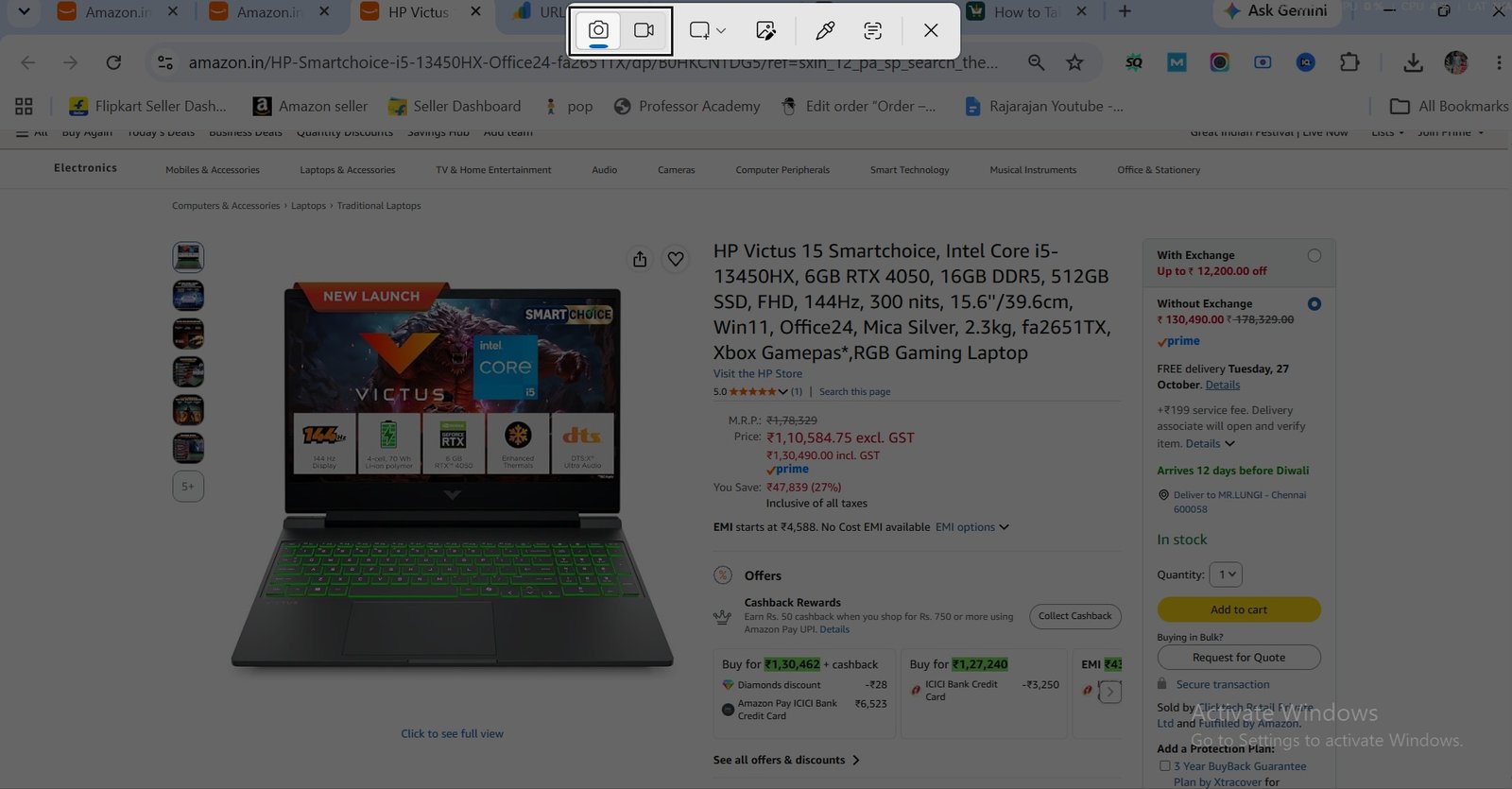
This is the fastest and most flexible way to take a screenshot on a laptop. It opens the Snipping Tool bar at the top of the screen and lets you choose exactly what to capture.
- Press Windows + Shift + S together. The screen dims and a small bar appears at the top.
- Pick a mode on the bar: Rectangle, Window, Full screen or Free-form.
- For Rectangle, click and drag over the part of the screen you want. For Window, click the window.
- The screenshot is copied to the clipboard. Press Ctrl + V to paste it into WhatsApp Web, Gmail, Word or Paint.
- To edit or save it, click the notification that appears in the bottom-right corner. It opens in Snipping Tool, where you can draw, crop and press Ctrl + S to save.
Tip: In recent versions of Windows 11, Snipping Tool also saves a copy of every snip in Pictures > Screenshots automatically. You can turn this on or off in Snipping Tool > Settings.
METHOD 2
Method 2: Windows + PrtSc (Save the Full Screen as a File)
Use this when you want a saved image file straight away, without pasting or editing anything.
- Open the screen you want to capture.
- Press Windows + PrtSc (the key may be labelled PrtSc, PrtScn or Print Screen).
- The screen dims for a moment. That means the screenshot was taken.
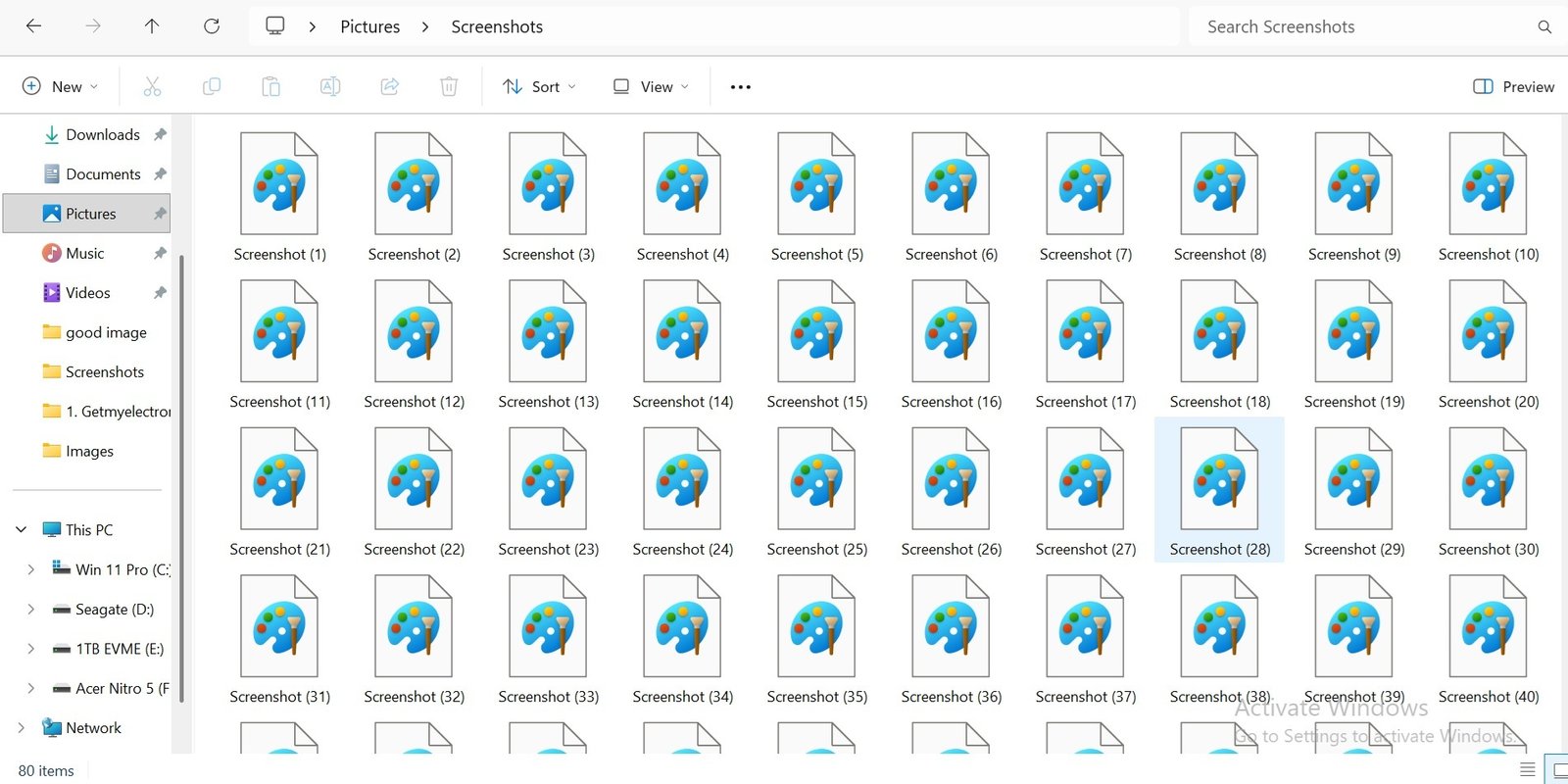
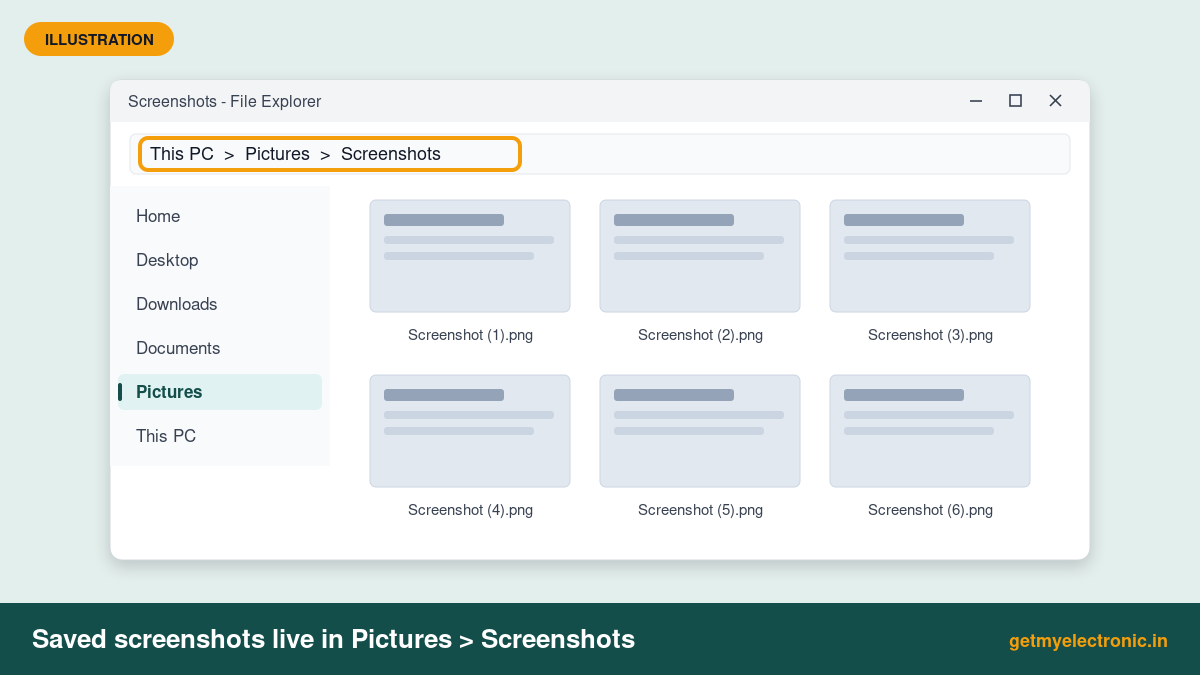
- Open File Explorer and go to This PC > Pictures > Screenshots to find the PNG file.
If nothing happens, your laptop may need the Fn key as well. Try Windows + Fn + PrtSc.
METHOD 3
Method 3: The PrtSc Key on Its Own
On Windows 11, pressing PrtSc alone now opens the same snipping bar as Windows + Shift + S. This is switched on by default on most laptops.
- Press PrtSc (or Fn + PrtSc on some laptops).
- Choose a mode and select the area, just like Method 1.
- Paste the screenshot with Ctrl + V or open it from the notification.
Prefer the old behaviour, where PrtSc copies the whole screen straight away? Go to Settings > Accessibility > Keyboard and turn off Use the Print screen key to open screen capture. After that, PrtSc copies the full screen to the clipboard.
METHOD 4
Method 4: Alt + PrtSc (Only the Active Window)
This captures just the window you are working in, without the taskbar or other windows. It is handy for error messages and app settings.
- Click the window you want so that it is active.
- Press Alt + PrtSc (or Alt + Fn + PrtSc).
- Paste it with Ctrl + V into a chat, email or Paint. This method copies only; it does not save a file.
METHOD 5
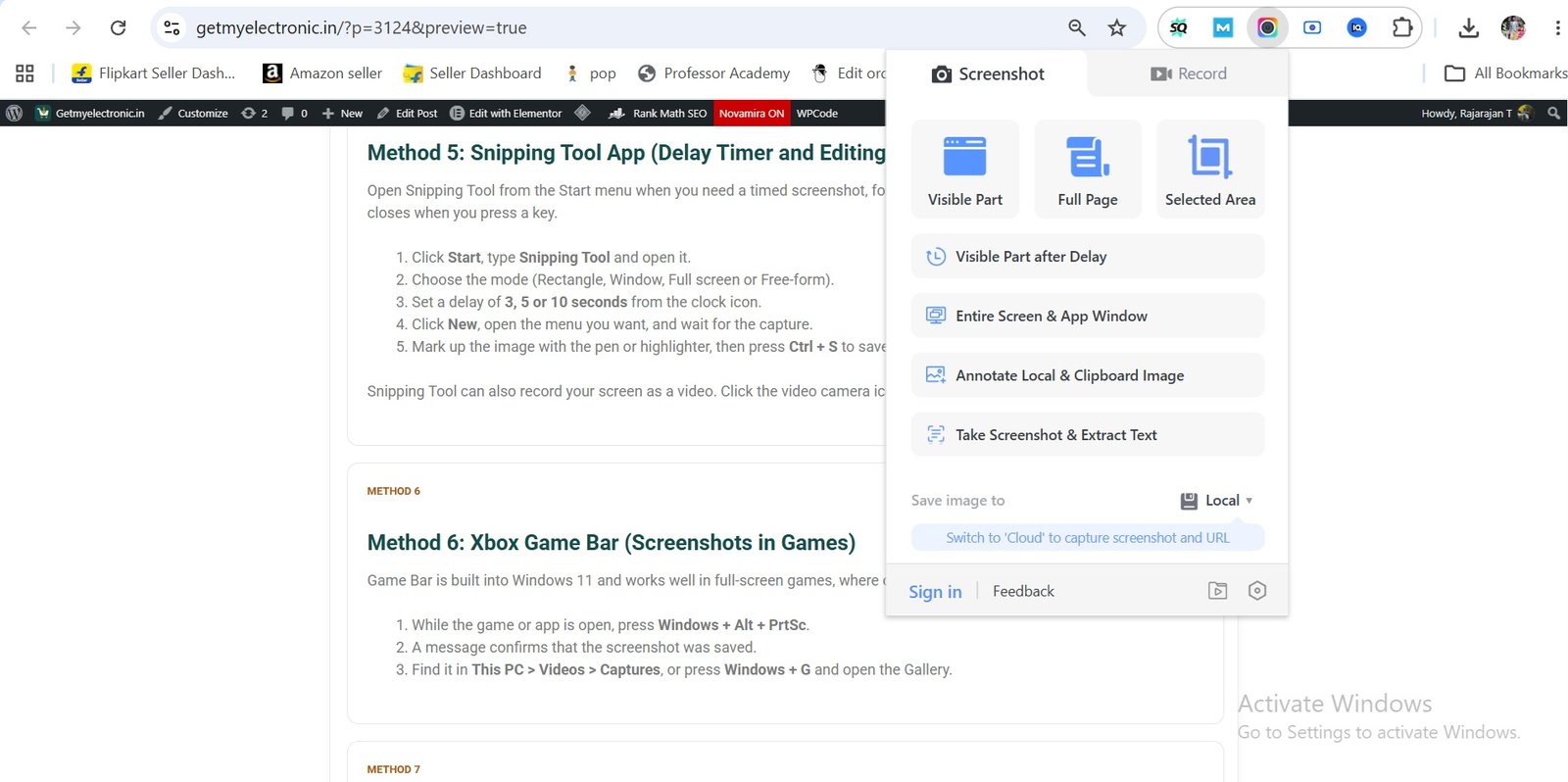
Method 5: Snipping Tool App (Delay Timer and Editing)
Open Snipping Tool from the Start menu when you need a timed screenshot, for example to capture a drop-down menu that closes when you press a key.
- Click Start, type Snipping Tool and open it.
- Choose the mode (Rectangle, Window, Full screen or Free-form).
- Set a delay of 3, 5 or 10 seconds from the clock icon.
- Click New, open the menu you want, and wait for the capture.
- Mark up the image with the pen or highlighter, then press Ctrl + S to save it where you like.
Snipping Tool can also record your screen as a video. Click the video camera icon instead of the camera icon.
METHOD 6
Method 6: Xbox Game Bar (Screenshots in Games)
Game Bar is built into Windows 11 and works well in full-screen games, where other shortcuts sometimes give a black image.
- While the game or app is open, press Windows + Alt + PrtSc.
- A message confirms that the screenshot was saved.
- Find it in This PC > Videos > Captures, or press Windows + G and open the Gallery.
METHOD 7
Method 7: Full-Page Screenshot of a Website
A normal screenshot only shows what fits on the screen. To capture a whole web page, use the browser.
- Microsoft Edge: press Ctrl + Shift + S, choose Capture full page, then save.
- Google Chrome: press Ctrl + Shift + I to open developer tools, then Ctrl + Shift + P, type screenshot and choose Capture full size screenshot.
WHERE TO FIND THEM
Where Are Screenshots Saved on a Laptop?
It depends on the method you used:
- Windows + PrtSc and recent Snipping Tool versions: This PC > Pictures > Screenshots
- Xbox Game Bar: This PC > Videos > Captures
- PrtSc, Alt + PrtSc and Windows + Shift + S: copied to the clipboard until you paste them
Tip: Press Windows + V to open clipboard history and paste any of your recent screenshots, not just the last one. Turn it on the first time it asks.
Screenshot Key Not Working? Try These Fixes
1. Use the Fn key
On many laptops, PrtSc is printed on the same key as Insert, Home or End. Hold Fn and press PrtSc. Some laptops also have an Fn Lock that changes the top row.
2. Use the on-screen keyboard
Press Windows + Ctrl + O to open the on-screen keyboard, then click its PrtScn key. This works even if the physical key is broken.
3. Check the Print Screen setting
Go to Settings > Accessibility > Keyboard and check the Print screen option. If a third-party app such as OneDrive, Dropbox or a screenshot tool has taken over the key, close that app or change its setting.
4. Restart Snipping Tool
If Windows + Shift + S does nothing, go to Settings > Apps > Installed apps > Snipping Tool > Advanced options and click Repair, then Reset if needed.
Taking a Screenshot on a MacBook or Chromebook
The steps above are for Windows laptops. If you also use a MacBook or a Chromebook, these are the shortcuts:
- MacBook: Command + Shift + 3 (full screen), Command + Shift + 4 (area), Command + Shift + 5 (all options). Files go to the Desktop.
- Chromebook: Ctrl + Show windows key (full screen), Ctrl + Shift + Show windows key (area). Files go to the Downloads folder.
Planning to Buy a New Laptop?
If your current laptop feels slow or the keyboard is worn out, our buying guides compare the best new laptops on Amazon India by budget.
Frequently Asked Questions About Laptop Screenshots
What is the shortcut key to take a screenshot on a laptop?
Press Windows + Shift + S to select any part of the screen, or Windows + PrtSc to save the full screen as a file in Pictures > Screenshots. Alt + PrtSc copies only the active window.
Where do screenshots go on a Windows 11 laptop?
Screenshots taken with Windows + PrtSc are saved in This PC > Pictures > Screenshots. Windows + Shift + S copies the image to the clipboard, and recent versions of Snipping Tool also save a copy in the same Screenshots folder. Game Bar captures go to Videos > Captures.
How do I take a screenshot if my laptop has no PrtSc key?
Use Windows + Shift + S, which does not need the PrtSc key. You can also open Snipping Tool from the Start menu or use the on-screen keyboard (Windows + Ctrl + O), which has its own PrtScn key.
How do I take a screenshot on an HP, Dell or Lenovo laptop?
The shortcuts are the same on every Windows laptop. If PrtSc shares a key with another function, as on many HP and Lenovo models, hold the Fn key with it, for example Windows + Fn + PrtSc.
How do I take a scrolling screenshot on a laptop?
Windows does not have a built-in scrolling screenshot for every app, but for web pages you can use Microsoft Edge: press Ctrl + Shift + S and choose Capture full page. Chrome has a similar option in its developer tools.
The Short Version
For everyday use, press Windows + Shift + S and paste the screenshot wherever you need it. When you want a saved file of the whole screen, press Windows + PrtSc and look in Pictures > Screenshots. Add the Fn key if your laptop’s PrtSc key shares a function, and use Game Bar for games.

Getmyelectronic is a buying guide for laptops, monitors, graphics cards and gaming PC accessories in India. The guides are written by Rajarajan, a gamer and PC hardware enthusiast. The aim is simple: help you pick the right product for your budget and your use, without the marketing noise